xAgent Triggers: Scheduled and Event-Driven Tasks
Version scope: baseline page fields were checked against source
43d2698on 2026-10-01. The marked 0.0.22 additions follow the v0.0.22.beta release notes. Verify your installed version if the UI or behavior differs.
Status: Experimental. The page and its fields may change.
Who This Is For
This page is for users and administrators who need xAgent to run tasks on a schedule or create tasks automatically from external events.
Entry: User app > Operations > Triggers (/app/triggers). The list belongs to the signed-in user. Administrators using the user app also see their own Triggers, not an organization-wide list.
What It Is
A Trigger automatically submits a task. Think of it as “when a scheduled time arrives or an event is received, send a prepared task to xAgent automatically.”
A Trigger is not the task result. It submits an activation message to the selected target Session, which consumes it and continues execution; each firing does not automatically create a new Session. Use that Session and its workspace to view results.
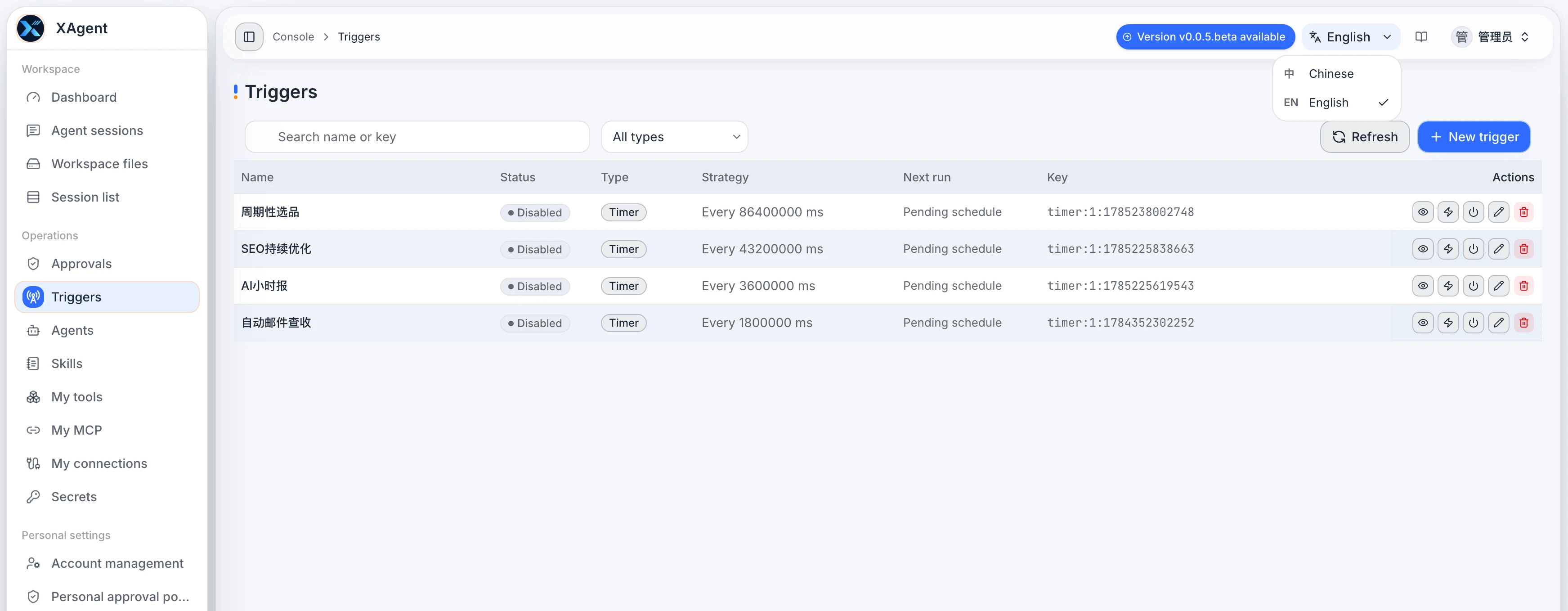
Screenshot note: This illustration is from
v005. The current UI generates a read-only Key; the detail drawer, counts, and error states are described below.
When to Use It
Triggers are suitable for:
- Checking email at 9 AM every day and generating a summary.
- Collecting news every four hours and sending a summary.
- Generating a recurring weekly report.
- Sending a task into a session after an external system receives a new message.
- Reminding xAgent to handle a repeated task at a scheduled time.
Triggers are not suitable when:
- The task goal is still unstable.
- Materials differ every time and need human judgment.
- The action is high risk and should not start automatically.
- External system authorization is not ready.
Reading the Page
The Trigger Management page normally shows:
| Information | Meaning |
|---|---|
| Name | Display name of the Trigger |
| Key | Stable user-scoped identifier; generated automatically, copyable, and read-only in the editor |
| Status | Whether it is enabled |
| Policy | Schedule interval or event rule |
| Run state | Next scheduled time, last successful submission, and submitted-message count; not completed-task count |
| Actions | Manually trigger, disable, edit, or delete |
Ordinary users should focus on the name, status, next run time, and latest run result.
Search matches names and Keys, with an additional timer / external type filter. The current API returns your full list and the page searches locally. The footer total reflects the type-filtered count, does not change with keyword matches, and is not a page count.
Open details for the target Session, activation context, task message, latest error, and copyable Key. A loading failure is shown as an error; do not treat an error or loading state as “no Triggers.” Refresh before concluding the list is empty.
Basic Usage
Create a Scheduled Trigger
- Prepare a target Session to receive the task, then open Triggers.
- Select New Trigger.
- Choose a type, such as scheduled; the editor cannot switch the type after creation.
- Enter a name and inspect or copy the automatically generated Key.
- Choose the target Session and activation context, then set the time or interval.
- Enter the task message, and set an expiry time or firing limit when needed.
- Save and confirm the enabled state and next scheduled time.
- Manually trigger it once when needed, then verify the actual outcome in the target Session.
Write a full task for a Trigger. Do not use vague instructions such as “continue” or “handle it.”
Example:
Please check customer email received today and list messages that need a reply. Generate drafts first and do not send them automatically.
Choose Timing and Stop Conditions
| Setting | Current behavior |
|---|---|
| Interval | Enter seconds, minutes, or hours; the server minimum is 1 second, but choose a frequency appropriate to task cost and duration |
| Fixed time | Daily, weekly, or monthly; the current scheduler uses Asia/Shanghai (UTC+8), not the browser’s time zone |
| Monthly date | A day beyond the end of a month is clamped to that month’s final day |
| Specific time | A future Unix-millisecond timestamp; the firing limit must be 1 |
| Expiry | Unix milliseconds; 0 means no expiry |
| Firing limit | Maximum successful message submissions; 0 is unlimited and 1 stops subsequent firings after one successful submission |
| Activation context | Full context, sliced context, or notify-only; choose for the target Session’s processing needs |
For example, “9 AM daily” in the current fixed-time scheduler means 09:00 UTC+8. When working across time zones, convert the time and verify the next scheduled time rather than relying only on your computer’s clock.
Trigger It Manually Once
Manual triggering is useful for checking whether configuration is correct. After triggering, open the related session and verify that the task was created, whether it failed, and whether it needs approval.
If a test could affect an external system, change it first to only generate a draft or only read data.
External Triggers
For the external type, configure the target Session and activation message, and retain the external trigger token as directed by the page. An automatically generated token is displayed only after that save and cannot be read back from the list. Do not place it in public screenshots, prompts, or documentation. A manual test of an external Trigger requires a valid token.
External Triggers have no next scheduled time. They submit a message only after a valid external hit. Creating one does not by itself connect a third-party event source; configure that system’s invocation and authorization separately.
Disable a Trigger
Disable a Trigger when it is no longer needed, its external connection is failing, its policy needs adjustment, or it might run repeatedly. Disabling is better than deleting when you only need to pause it temporarily.
Recurring Tasks: Waiting and Completing a Run
In v0.0.22.beta, an unfinished run prevents the same scheduled task from starting another run. The Agent can explicitly register waiting or completion without creating a Plan/Task just to express that state. Ending a chat reply, delivering a message, and accepting a business result are separate events.
- Reply waits have no default timeout and reject unrelated input. Answer the original pending request; put other work in another Session.
- A Plan/Task waiting deadline is a signal to handle, not automatic completion.
- Timer delivery retains its original input identity and planned time across busy deferrals, failures, write-back errors, and restarts. An old callback cannot consume an edited schedule early.
Before scheduling, define the scope of each run, the person or result it must wait for, acceptance criteria, and external actions that require approval. See recovery checks.
Run Checks and Troubleshooting
- Check whether the Trigger is enabled, expired, or at its firing limit, and whether the target Session is still accessible.
- If nothing runs at the expected time, check the next time, fixed-schedule time zone, and latest error in details.
- Automatic timer firings are deferred for 5 minutes when the target Session is running, compressing, finalizing, or waiting for approval. That deferral does not increase the count or update the latest successful firing time. Resolve unfinished work in the original Session first.
- An increased count means the target Session accepted the message. Check the execution result, output, or pending approval separately; the count is not acceptance of the finished task.
- Disable during troubleshooting, repair the connection or configuration, then re-enable and run a low-risk check. Avoid repeatedly triggering tasks with external effects.
Writing a Trigger Task
A Trigger task should include:
| Content | Example |
|---|---|
| Goal | Generate a daily email summary |
| Data scope | Process only new email received after 00:00 today |
| Output format | Produce a to-do list and suggested replies |
| Risk constraint | Do not send automatically; wait for confirmation |
| Failure handling | State the reason in the session if the connection is unavailable |
Full example:
Please check today's new email, filter the items I need to handle, and sort them by urgency. For messages requiring a reply, generate drafts only and do not send them directly.
Continue Reading
- How Multiple AI Agents Collaborate Through Session Events
- Agent Session
- Tasks
- Long-running Tasks
- Connectors