xAgent Tool Management: Personal, Public, MCP, and AgentPlugin Tools
Start everyday tasks in an Agent Session; you do not need to select every Tool manually first. When a step cannot run, use this page to distinguish Tool sources, enabled state, external connections, and approval requirements.
Find Guidance by Problem
| Problem | First check | Read |
|---|---|---|
| You do not know which Tool to use | Describe the goal, input, and output format | Use a Tool in a Task |
| A Tool is missing or cannot run | Visibility, enabled state, connection, secrets, and account permissions | Check Whether a Tool Is Available |
| A call did not produce the expected result | Returned status, target, files, and errors | Review Tool Call Results |
| System capabilities need to be enabled or withdrawn | Source trust, runtimes, and default approvals | Govern Tools as an Administrator |
Who This Is For
This page is for users who need xAgent to read files, access web pages, process spreadsheets, send messages, or use external capabilities.
What It Is
A Tool is a capability that lets xAgent perform a concrete action. Ordinary users can think of Tools as the function buttons available to a work assistant: reading files, searching the web, processing spreadsheets, generating reports, calling external systems, and sending messages can all be performed through Tools.
You usually do not need to remember Tool names. Describe the action you want to complete, and xAgent will use the capabilities currently available.
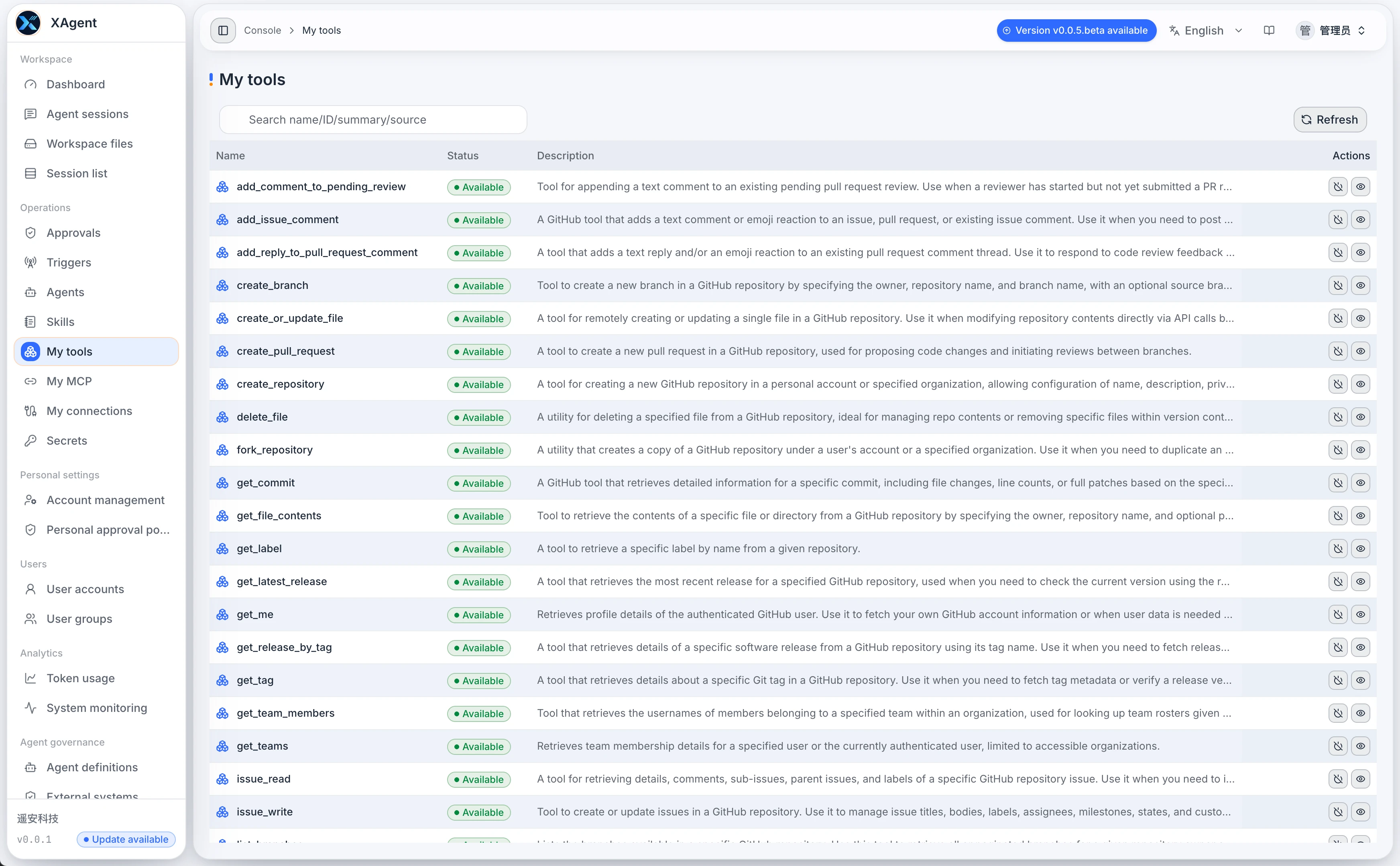
Entry Points and Scope
Tool-related entry points are divided between user and administrator pages:
| Page | Audience | Purpose |
|---|---|---|
| My Tools | Ordinary users | View Tools visible to the current user, personal MCP Tools, and personal Tool switches |
| Tool Management | Administrators | View all Tool governance information returned by the system and manage enablement, disablement, deregistration, input schemas, and output contracts |
Ordinary users mainly use My Tools. Administrators use Tool Management when they need to govern system-level capabilities.
Public, Personal, and AgentPlugin Tools
Tool visibility depends on source, connection state, user authorization, and administrator policy.
| Type | Common Source | Visibility Scope |
|---|---|---|
| System / public Tool | Built-in xAgent Tools, global MCP configured by administrators, and system-level AgentPlugin Tools | Displayed according to administrator policy and current user state |
| Personal MCP Tool | An MCP Server configured by the current user | Affects only the current user's Tool view |
| Personal Tool switch | The current user's enable or disable choice for a visible Tool | Affects only the current user's experience |
| AgentPlugin Tool | Tools declared by AgentPlugins such as WeChat, email, or enterprise systems | Usually requires an installed AgentPlugin and authorization or binding by the current user |
Seeing a Tool as available does not mean it can bypass approval or access all data in an external system. External permissions, AgentPlugin state, Secrets, and approval policies still apply.
When to Use It
The following tasks usually require Tools:
- Reading Workspace files.
- Accessing web pages or external sources.
- Analyzing CSV, Excel, PDF, and other files.
- Generating and saving reports.
- Sending content to email, WeChat, or other external channels.
- Querying external systems or handling events through AgentPlugins.
A Tool may not be necessary when the task only rewrites or summarizes text already provided in the message.
Reading the Page
My Tools shows Tools visible to the current user. Tool Management shows Tool governance information from the administrator's perspective. Common information includes:
| Information | Meaning |
|---|---|
| Tool name | The Tool's name in the system |
| Availability | Whether the current user can use it |
| Source | Whether the Tool comes from the system, personal MCP, an AgentPlugin, or another source |
| Switch | Whether the Tool is enabled |
| Description | The action the Tool can perform |
| Details | More complete parameter and usage information |
| Input Schema | The parameters required by the Tool |
| ToolResult output contract | The structure and fields returned by the Tool |
| Governance constraints | Default approval, allowed hosts, sensitive actions, connection scope, and other restrictions |
Ordinary users should focus on availability and description, then ask xAgent to invoke the Tool directly. Advanced users can also inspect source, parameters, and risk level to fine-tune personal capabilities, while administrators manage system-level governance.
Basic Usage
Use a Tool in a Task
Do not force an internal Tool name. Describe the action directly:
Read the Excel file I just uploaded, calculate the order amount for each customer, and save the result as CSV.
If you know a Tool can complete the task, you may ask xAgent to use an available Tool, but ordinary users should not need to specify internal Tool names.
Check Whether a Tool Is Available
If a task cannot proceed, open My Tools and check:
- Whether the Tool appears in the list.
- Whether the Tool is enabled.
- Whether the Tool requires an external connection or Secret.
- Whether the current account has permission to use it.
- Whether an administrator disabled the capability.
If the Tool is not listed, contact an administrator to enable or connect it.
Govern Tools as an Administrator
In Tool Management, administrators should confirm:
- Whether the Tool source is trusted.
- Whether the Tool is actually available or is missing a runtime.
- Whether the input Schema lets the model fill in parameters correctly.
- Whether the ToolResult output contract is clear.
- Whether it performs sensitive actions such as sending, deleting, overwriting, or making external requests.
- Whether the default approval policy is appropriate.
- Whether unavailable Tool projections should be disabled or deregistered.
Do not assume a Tool is suitable for every user merely because it appears in the list. Tools that interact with external systems, write files, send messages, or access internal addresses should use approval policies and least-privilege configuration.
Review Tool Call Results
In an Agent Session, Tool calls may appear as process cards. Check:
- Whether the call succeeded.
- Whether approval is required.
- Whether it produced a file.
- Whether it accessed or sent data to the correct target.
- Which reason was reported if it failed.
A Tool result is not always the final answer. xAgent usually organizes the Tool result into a user-readable response.
Common Scenarios
Read a File
Read contract.pdf in the Workspace and identify risks related to payment, delivery, and breach.
Generate a File
Save the previous analysis as Markdown and create the file in the Workspace.
Access a Web Page
Open this web page, summarize the product pricing information, and list the source links.
Confirm Before Sending
Draft a reply based on the customer's message. Ask for confirmation before sending it.
Risks and Approvals
Some Tool actions may affect external systems or data security, including:
- Deleting, overwriting, or moving files.
- Sending messages to external channels.
- Accessing internal addresses or third-party APIs.
- Using Secrets to call external systems.
- Creating long-running tasks or automatically triggered tasks.
Approval policies may intercept these actions. When an approval appears, review the action, target, and outcome before deciding whether to allow it.
Related Concepts
- How AI Agents Discover and Load Tools and Skills on Demand
- Skill Management
- AgentPlugins
- Approval Policies