xAgent Skill Management: Create, Test, Publish, and Update
A Skill saves a repeatable work method for use in tasks. Creating a draft, publishing it to the personal library, and submitting it for public review are separate actions. Start with the operation that matches your goal.
Choose an Operation
| Your goal | Read | Completion check |
|---|---|---|
| Use an existing method | Use an Existing Skill | Inspect the result of a real task |
| Create or improve your own method | Create or Update a Personal Skill | Test the draft and decide whether to publish |
| Reuse it in later personal Sessions | Publish to the Personal Library | The published personal Skill can be referenced |
| Make it available to all users | Submit for Public Library Review | An administrator approves the submitted snapshot |
Who This Is For
This page is for users and administrators who want xAgent to handle recurring work reliably.
What It Is
A Skill is a reusable work method. It records fixed steps, output requirements, important notes, and quality standards so xAgent does not need to understand the same type of task from scratch each time.
Ordinary users can directly use public Skills prepared by administrators. When permissions allow, they can also create or import personal Skills. Most users do not need to configure a Skill from scratch and can use existing Skills directly, then fine-tune personal Skills after becoming familiar with them. Administrators review stable personal Skills and turn them into public capabilities.
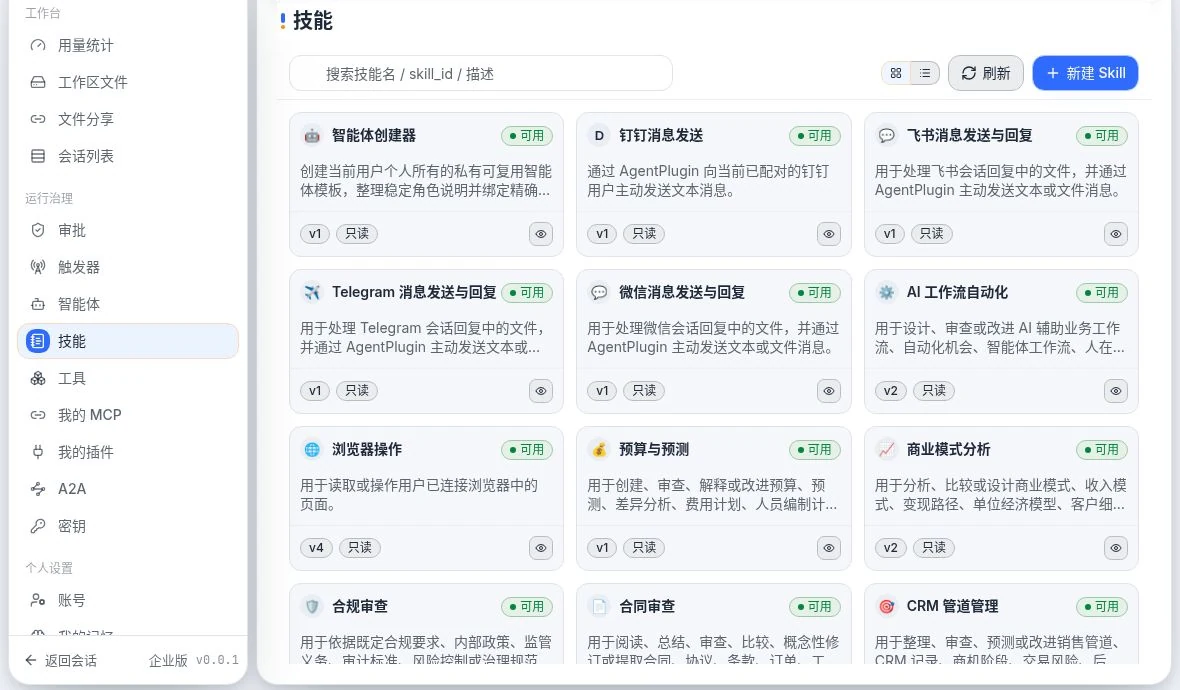
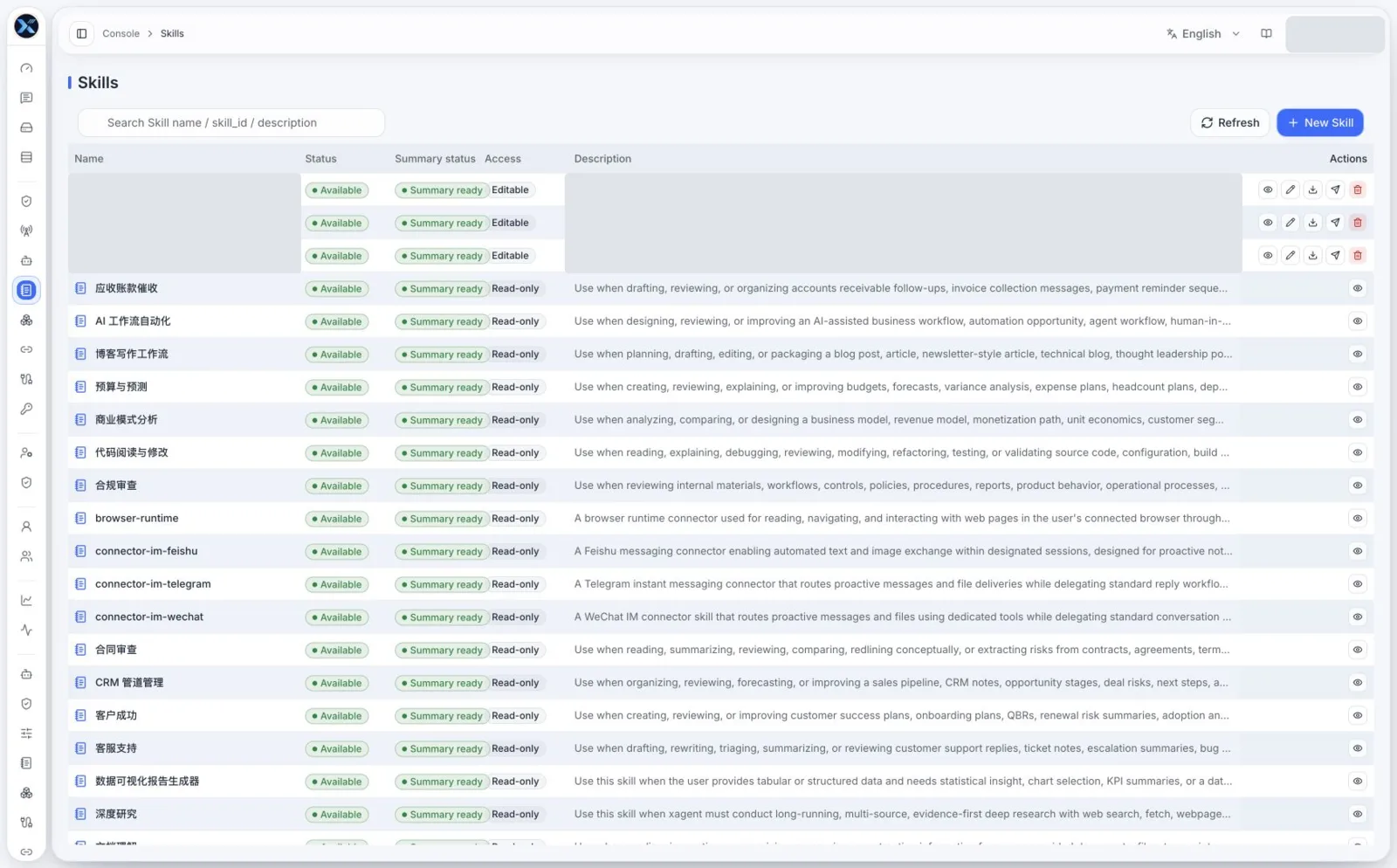
Skill list in the reviewed instance: names, descriptions, versions, read-only state, and availability. Chinese UI; account-visible cards and historical release inventories are different scopes.
Earlier interface reference (retained)
Visibility Scope
xAgent currently does not apply complex access restrictions to Skills. Public Skills are visible to all users and are suitable for general, stable work methods that team members can share.
If a Skill has special requirements, applies only to one user, contains personal work habits, targets a specific customer workflow, or should not be visible to other users, install or save it separately in the personal Skill library. A personal Skill is visible only within the current user's scope.
Skill status and scope can be understood as follows:
| Type | Visible to | Available Actions |
|---|---|---|
| Draft Skill | Current user | Edit and test, then publish to the personal library after confirmation |
| Personal Skill | Current user | Use, edit, export, and delete; submit for public library review after it becomes stable |
| Public Skill | All users | View, reference, and use; ordinary users usually have read-only access, while administrators review and maintain it |
Do not put personal habits, temporary paths, private accounts, customer-specific details, or non-public internal processes in public Skills. Keep Skills with special requirements in the personal Skill library.
Public Catalog and Installed State
Since v0.0.21.beta, the public Skill catalog uses v2: each Skill has an immutable ZIP and skill.json. Full-library artifacts and the old startup migration are no longer produced or run. Installed state is derived directly from the currently loaded source path and version instead of a second installation record.
Seeing a catalog entry, installing a Skill, loading it into a Session, and publishing your own draft are therefore separate stages. If a visible Skill cannot be used, check its deployed source, version, and availability first, then confirm that the Session has loaded it and its required Tools are available.
When to Use It
Use a Skill when:
- A task repeats frequently.
- Each run follows fixed steps and a fixed format.
- Output quality must remain stable.
- Multiple Tools must be combined to complete the work.
- Personal experience should be captured for team reuse.
Common Skills include research organization, report generation, meeting notes, contract review, data analysis, customer support replies, investment research, and document understanding.
To inspect built-in Skills for real task scenarios or suggest improvements, read Built-in Skill Files. The documentation project includes a copy under skills/; submit related suggestions through Share an Idea.
Reading the Page
Skill Management displays Skill cards. Common information includes:
| Information | Meaning |
|---|---|
| Skill name | Display name or identifier of the Skill |
| Description | The type of task the Skill handles |
| Editable / read-only | Whether the current user can modify it |
| Details | Skill guidance, usage, and configuration |
| Download / send / delete | Management actions for editable Skills |
Ordinary users should focus on the name, description, and details. Do not choose a Skill by name alone; confirm that it fits the current task.
Basic Usage
Use an Existing Skill
- Open Skill Management.
- Search for task keywords such as "contract," "report," or "customer support."
- Open the Skill details and confirm that its purpose matches the task.
- Return to an Agent Session, submit the task, and describe the goal and materials.
- To request a specific Skill, say directly that xAgent should follow that Skill's method.
Example:
Use a meeting-notes method to organize the transcript I uploaded. Output decisions, action items, owners, and due dates.
Create or Update a Personal Skill
This is suitable for users who already understand a fixed workflow and want to fine-tune a personal capability. Before creating or updating a Skill, prepare:
- The type of task the Skill solves.
- The materials users must provide.
- The processing steps.
- The output format.
- Situations requiring human confirmation.
- Content that must not be written into the Skill.
Do not put temporary file paths, account passwords, tokens, verification codes, or one-time customer information in a Skill.
In addition to creating or importing a Skill in Skill Management, you can describe the desired Skill in the main Agent Session. xAgent automatically creates a Skill-building Session, learns the requirements, generates a draft, and publishes it after your confirmation. You can also create a dedicated Skill-building Session directly through an Agent.
To update an existing Skill, identify it in a Skill-update sub-session. xAgent automatically copies the Skill into the Session directory and uses the copy as a draft, modifies it according to your requirements, and publishes the update only after confirmation.
Publish to the Personal Library
When creating or editing a Skill, the system first generates a draft. A draft is suitable for testing and adjustment and should not be treated as a team-standard capability immediately.
After confirming the draft is usable, select Publish to Personal Library in Skill Management. The Skill then becomes the current user's published personal Skill. Later Agent Sessions can reference it, and the current user can continue editing, exporting, or deleting it.
Submit for Public Library Review
After a personal Skill has been tested with real tasks and confirmed stable, submit it for public library review. At submission time, the system copies a snapshot of the current published personal Skill for administrator review. Later edits to the personal Skill do not affect the submitted review snapshot.
The recommended flow is:
- Create or import a Skill as a draft.
- Test it in your own tasks and add examples, boundaries, and quality standards.
- Publish it to the personal library and use it as a personal Skill.
- After using it for a period of time, submit it for public library review if it is suitable for multiple users.
- After administrator approval, it enters the public library and becomes visible to all users.
Administrators should check whether its purpose is general, its description is clear, it contains sensitive information, it depends on a private account or specific external system, and it is suitable for every user to see.
Make a Skill More Effective
A good Skill usually includes:
| Element | Description |
|---|---|
| Clear purpose | Explain in one sentence which task it handles |
| Input requirements | State which materials the user must provide |
| Operating steps | Explain the process in order |
| Output standard | Define the result format, fields, and quality requirements |
| Risk guidance | State when to request confirmation or stop |
| Example | Give ordinary users a task prompt they can reuse |
If a Skill becomes increasingly complex, split it into smaller Skills instead of putting every scenario into one Skill.
Common Scenarios
Recurring Report
Use the data visualization report generator method to create this week's business analysis report from sales.csv.
Customer Support Reply
Follow the customer support workflow to draft a reply based on the customer's question. Do not send it yet.
Contract Review
Follow the contract review method to read this contract, focusing on payment, delivery, breach, and dispute resolution clauses.
Generate a New Skill Draft
Turn the fixed work method below into a maintainable Skill draft.
Management Guidance
- Public Skills should serve multiple users and avoid personal habits.
- Write Skill descriptions for users, not only with internal terminology.
- Common Skills should include clear example tasks.
- Steps involving external sending, deletion, or account authorization must require confirmation first.
- Mark expired or unstable Skills clearly so ordinary users do not use them by mistake.
- Complete sufficient testing in a personal Skill before submitting it to the public library.
- Do not promise team-wide stable availability before public library approval is complete.
Related Concepts
- How AI Agents Switch Models, Skills, and Prompts During a Task
- How AI Agents Discover and Load Tools and Skills on Demand
- Tool Management
- Built-in Skill Files