Database AgentPlugin Configuration: Connect MySQL and PostgreSQL
Administrators configure database addresses in the Database AgentPlugin. Users then connect with their own database accounts. Database addresses and sign-in credentials stay inside the AgentPlugin Server and are not sent to the model as Tool arguments.
The current public release is 0.0.7. It supports MySQL and PostgreSQL.
Before You Start
- Users of an existing database resource: confirm that an administrator has added it, then go directly to Connect a User. Do not repeat service installation or registration.
- Administrators setting up a resource: verify network access from the plugin host and prepare a stable resource ID, database name, and address before installing, registering, and adding it.
- Permissions and storage: native database accounts determine which SQL can run. Use read-only accounts for read-only work. Keep credentials in the AgentPlugin state directory, not in Sessions or resource descriptions.
Setup is verified when the service is online, the user is connected, and a read-only query returns the expected resource’s data. Saving a resource alone does not connect a user.
Install
Rerun the installer on the xAgent host and select only the Database AgentPlugin:
curl -fsSL https://downloads.xagent.xiagaogao.com/scripts/install.sh \
  | bash -s -- --yes --agent-plugins database
The installer preserves existing configuration and prints the AgentPlugin address and API Key when it finishes.
| Item | Linux | macOS |
|---|---|---|
| Configuration | /opt/xagent/agent-plugins/database/config.yml | ~/.local/share/xagent/agent-plugins/database/config.yml |
| State directory | /opt/xagent/agent-plugins/database/state | ~/.local/share/xagent/agent-plugins/database/state |
| Executable | /usr/local/bin/xagent-database-agent-plugin | ~/.local/bin/xagent-database-agent-plugin |
Linux creates and starts the xagent-database-agent-plugin systemd service. The macOS installer also prepares and starts a managed service. Use this command only for manual troubleshooting:
cd ~/.local/share/xagent/agent-plugins/database
~/.local/bin/xagent-database-agent-plugin start --config ./config.yml
Register It in xAgent
As an administrator, open Agent Governance > AgentPlugin Connectors and select Add AgentPlugin.
| Field | Value |
|---|---|
| AgentPlugin address | A same-host installation normally uses http://127.0.0.1:19094; for separate hosts, use an address reachable by xAgent Server |
| API Key | The API Key printed by the installer, matching database_agent_plugin.api_key |
The AgentPlugin should show Online with protocol 4.4. Database AgentPlugin 0.0.4 and later display a separate management action. If it is missing, upgrade the AgentPlugin and confirm that the API Key is not empty.
Only xAgent Server needs access to port 19094; do not expose it directly to the public internet.
Add a Database
Use the management action on the Database AgentPlugin row to open the database resource page.
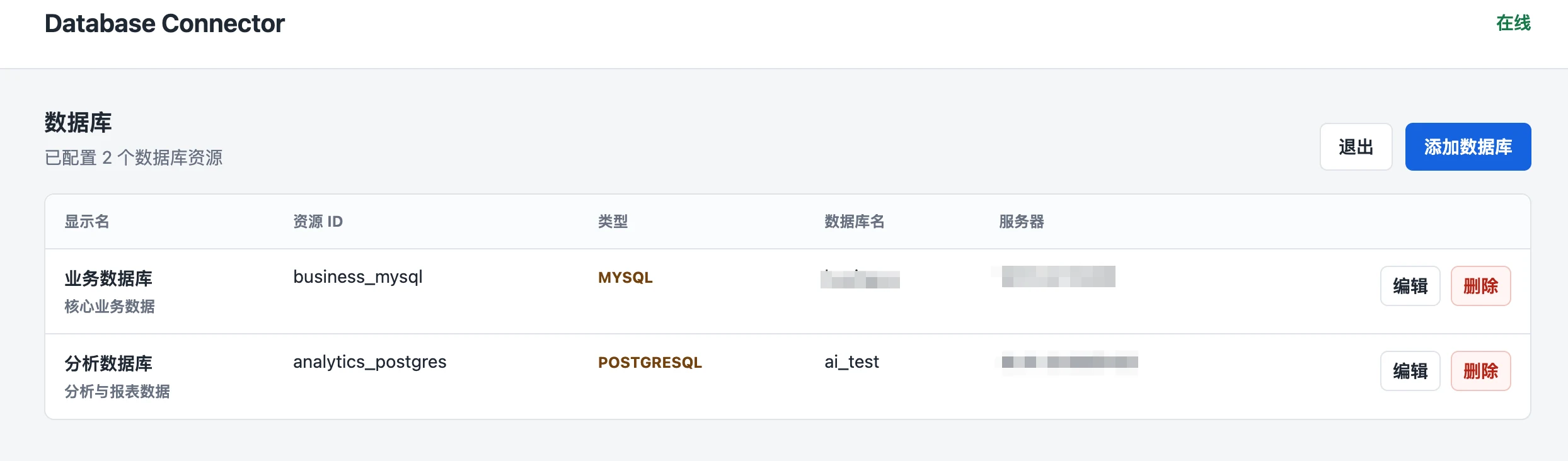
Select Add Database:
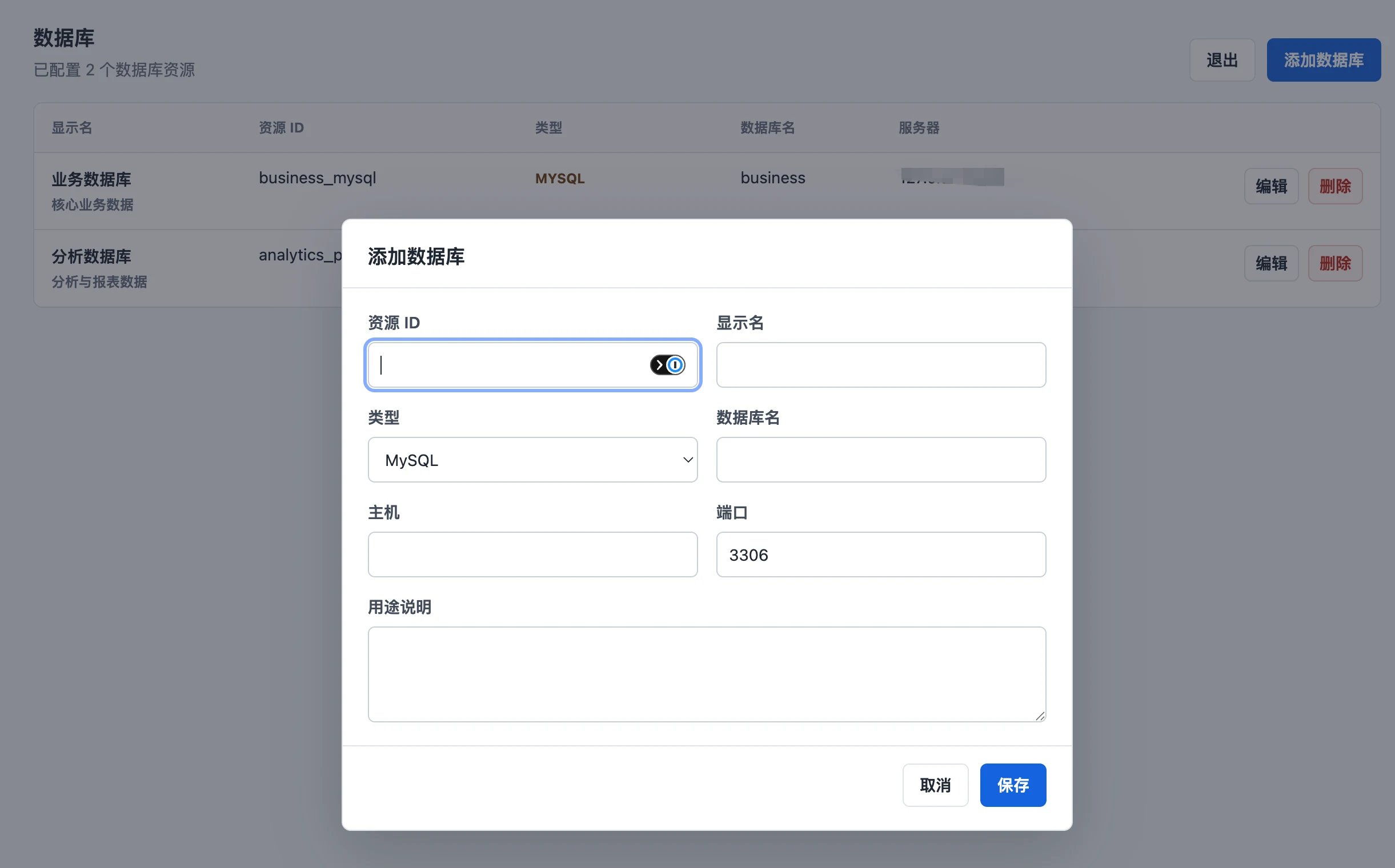
| Field | What to enter |
|---|---|
| Resource ID | A stable, unique value such as business_mysql; it becomes the resource_key and database_id |
| Display name | The name users see under Plugin Connections |
| Type | MySQL or PostgreSQL |
| Database name | The actual database name inside the target instance |
| Host | The database address reachable by the AgentPlugin Server |
| Port | The actual service port; common defaults are 3306 for MySQL and 5432 for PostgreSQL |
| Purpose | A short description of the database; do not include usernames, passwords, or other credentials |
Saving applies immediately and does not require a restart:
- New resources appear in the user resource list.
- Changing a display name or purpose does not rebuild existing connections.
- Changing the host, port, database name, or type reconnects the target.
- Deleting a resource closes its connections and removes the user credentials stored for it by the AgentPlugin Server.
Connect a User
After the administrator adds a resource, the user opens Plugin Connections, selects the Database AgentPlugin and resource, and enters their own database username and password.
One user can connect several databases. Connecting the same resource again replaces the previous credentials. Native database permissions decide whether SQL can run; the AgentPlugin does not elevate permissions.
Start with a read-only check:
List my connected databases, then read the schema of the business database. Do not change any data.
The Database AgentPlugin provides db_list, db_getinfo, and db_execute_sql. Use least-privilege database accounts in production. For read-only access, use a database-native read-only account or role.
User credentials are stored in state_dir/credentials.json. The directory mode is 0700 and the file mode is 0600. There is currently no application-layer encryption, so place the state directory on an encrypted disk or controlled volume in production.
Edit config.yml Directly
The management page changes only database_agent_plugin.databases. Edit config.yml for the listen address, API Key, state directory, and query limits:
database_agent_plugin:
  addr: 127.0.0.1:19094
  api_key: replace-with-a-long-random-system-api-key
  state_dir: /opt/xagent/agent-plugins/database/state
  query_timeout_seconds: 30
  max_rows: 500
  max_result_bytes: 1048576
  databases:
    - id: business_mysql
      display_name: Business Database
      description: Core business data
      database_name: business
      host: 10.0.0.10
      port: 3306
      type: mysql
The AgentPlugin does not watch manual file changes. Restart it after editing config.yml directly:
sudo systemctl restart xagent-database-agent-plugin
sudo systemctl status xagent-database-agent-plugin
Common Problems
| Symptom | Fix |
|---|---|
| AgentPlugin is offline | Check the service, the 19094 listener, network access, and the API Key |
| Management action is missing | Upgrade to 0.0.4 or later and confirm the AgentPlugin started from a configuration file with a non-empty API Key |
| New resource is absent from My connections | Confirm the save succeeded and the AgentPlugin is online, then refresh the AgentPlugin Card and user page |
| User authentication fails | From the AgentPlugin Server, check database networking, the database name, username, and password |
| SQL is rejected | Use the permission or SQL error returned by the database, then adjust the database account or statement |
| Manual configuration change has no effect | Restart the AgentPlugin; only resources saved through the management page apply immediately |
Linux logs:
journalctl -u xagent-database-agent-plugin -f