xAgent Approval Policies: Controlling Sensitive Tool Actions
Version scope: current-field and behavior corrections below were checked against source
43d2698on 2026-10-01. Older public binaries may differ; verify your installed version before following a changed UI or operation.
Who This Is For
This page is for ordinary users who need to confirm risky actions and administrators who need to configure security rules.
User approvals are at /app/approvals, personal rules at /app/approval-policy, and administrator system rules at /admin/approval-policy. Handling one approval and changing persistent rules are different operations.
What It Is
Approvals let a person confirm a specific risky operation before it runs. Approval policies define which tool operations can run directly, which require confirmation, and which should be rejected.
Users can submit a task normally. The session enters waiting_approval only when the Agent reaches a matching tool call. Approval resumes the preserved tool call; rejection prevents that operation from running.
Ordinary users only need to remember one thing: when the page asks for confirmation, check the action and its effect before allowing it to continue.
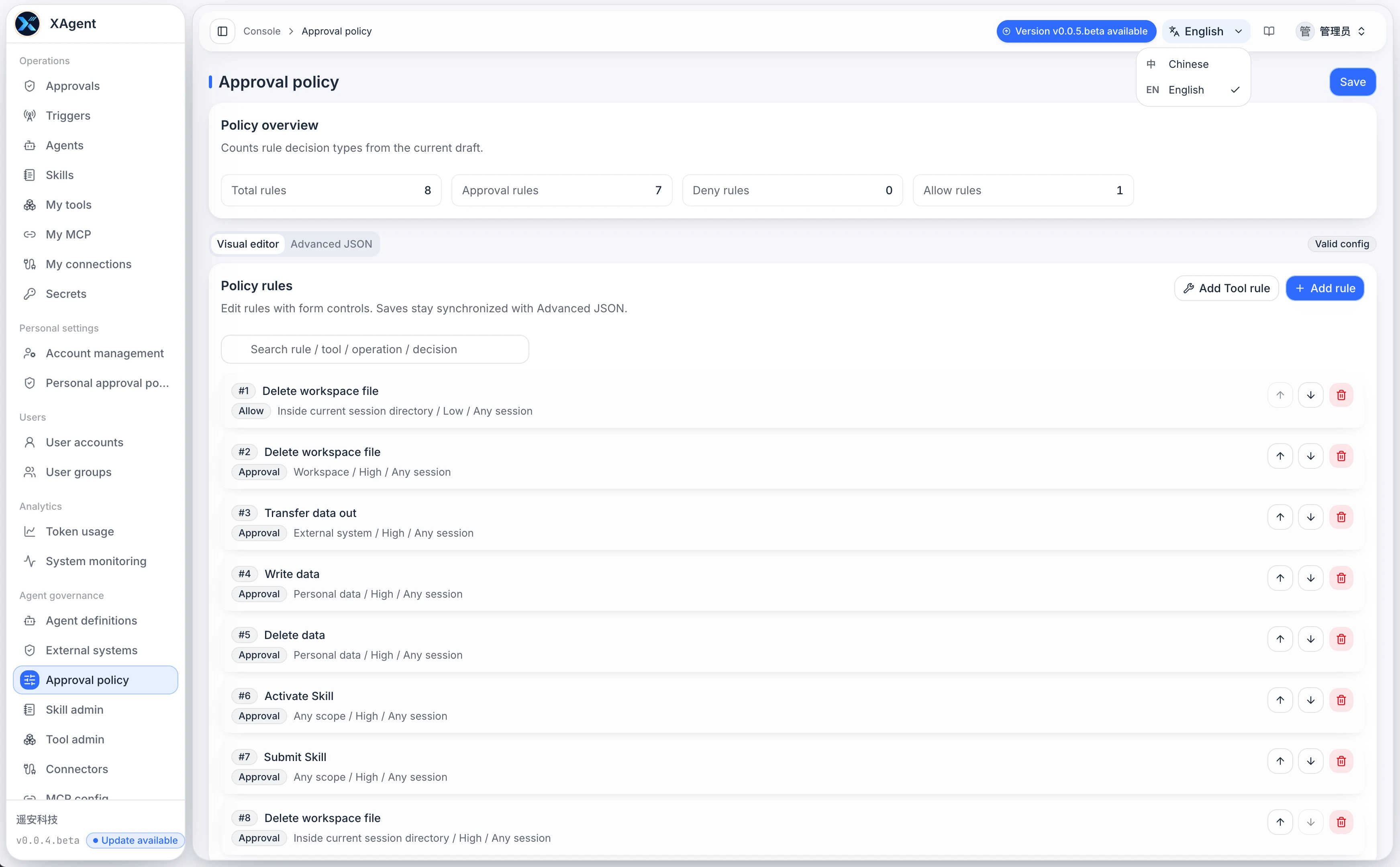
Screenshot note: This
v005image illustrates the system-policy editor. It is not the current user approval list and does not imply that system rules take precedence over personal rules.
When to Use It
The current policy model can identify and control these main operations:
- Workspace file reads, writes, and deletion.
- Network requests and process execution.
- Reading, writing, deleting, and transferring personal data such as email.
- Creating sub-sessions.
- Activating Skill drafts and submitting public Skills.
One tool call may produce several operation facts. xAgent merges their results with this priority: deny, approval, then allow.
How Ordinary Users Handle Approvals
When a session is waiting for confirmation, handle it in this order:
- Check the action that will be performed.
- Check the involved file, external system, or recipient.
- Decide whether it matches the current task goal.
- If the work should only produce a draft, ask it not to send anything yet.
- Allow it to continue after confirming it is correct; reject it or add instructions when uncertain.
Do not approve an action just because the page says approval is required. The purpose of approval is to make users pause at an important point and verify it.
When a Session waits for approval, xAgent attempts to notify all available IM messaging channels for that user, including for Web-originated tasks. A channel needs an available sending tool and must meet connection-state and target-permission requirements. If delivery fails, handle the approval in Web.
Reply with the standard reference shown in the notice: @{approval:approval-id} approve or @{approval:approval-id} reject. Chinese replies can use @{approval:审批ID} 同意 or @{approval:审批ID} 不同意. The old #approval-number format is not supported. Copy the reference from the current notice rather than guessing an ID.
Only the first valid decision is accepted. A later reply from another entry point does not rerun the operation or change an accepted decision. Check subsequent execution in the original Session rather than clicking repeatedly or resubmitting the task.
How Administrators Configure Policies
Administrators can maintain system-wide rules on the Approval Policies page. The page usually includes a policy overview, a visual editor, and advanced JSON.
Use the visual editor first where possible:
| Field | How to understand it |
|---|---|
| Atomic action | The specific action type controlled by the rule |
| Decision | Allow directly, require approval, or reject |
| Resource scope | The files, sessions, or external resources affected by the rule |
| Risk | The risk label for the action |
| Session type | Whether the rule applies to main sessions, sub-sessions, or all sessions |
| Data domain | The category of data covered by the rule |
| Sensitive action | Whether it involves sending, deletion, authorization, or another sensitive action |
| Host / URL prefix | The target scope for external requests |
Policies are matched in order. The first matching rule takes effect. Put more specific and higher-risk rules first so a broad rule does not allow them too early.
System and Personal Policies
Administrators maintain the system policy, while users can maintain a personal policy. The reviewed policy evaluates the personal policy first and falls back to the system policy only when no personal rule matches or the personal rule uses inherit. An explicit personal match overrides the system decision.
The personal policy is therefore an override layer, not an add-only restriction layer. Enterprise environments that require administrator rules to be an immutable minimum baseline should evaluate whether personal policy editing is appropriate for the current policy behavior.
Current Default Policy
The default policy adds no separate approval rule for a main Session creating sub-sessions; it allows the operation when no other rule matches. Deletion identified as a current-session child path (current_session_child) is also allowed by default, including current-session artifact paths. This scope is broader than the artifact-directory wording in older documentation. These actions require one-time approval by default:
- Deleting other workspace files.
- Transferring personal data to an external system.
- Writing or deleting sensitive personal data.
- Activating a Skill draft.
- Submitting a Skill to the public library.
Other operations are allowed when no rule matches. Teams should add rules for network access, process execution, file writes, and external systems according to their risk requirements.
Recommended Policies
| Scenario | Recommendation |
|---|---|
| Regular file reading | Allow directly |
| Generating files in a workspace | Allow directly or require low-risk confirmation |
| Deletion, sensitive writes, or external sending | Require approval |
| Access to an unknown external address | Require approval or reject |
| Explicitly prohibited paths or systems | Reject directly |
Security requirements differ across teams. The current effective result is determined by the personal and system policies together.
Checks After Configuration
In v0.1.0, rule changes save immediately. Review the following before editing and verify each change afterward:
- Whether any direct-allow rule is too broad.
- Whether deletion, sending, and external requests still require approval.
- Whether the rule order works as intended.
- Whether example hosts or paths were mistakenly used as real configuration.
- Whether a personal approval policy needs additional rules.
After editing, use a low-risk test task to verify that the policy takes effect.
Verify both “no personal match / inherit” and “explicit personal match,” and record the Tool, actual resource, matched rule, and effective decision. When one call produces multiple operation facts, allowing one fact does not allow every other fact.
Notes
- Approval policies do not replace account permissions.
- Do not put keys, tokens, or real passwords into policy descriptions.
- System policies affect every user, so edit carefully.
- Personal rules can currently override system decisions; confirm this behavior fits the deployment's governance requirements.
- Keep human confirmation for high-risk actions even when they are technically executable.
- If you are unsure about a rule's scope, begin with a stricter rule and relax it gradually.
Continue Reading
- Shortcut Protocol: Commands, Targets, and References
- Agent Session
- Workspace Files
- Tool Management
- Connectors
- AI Agent Approval and Safety