xAgent Agent Sessions: Submit Tasks, Files, and Approvals
Server v0.1.0 adds virtual teams, shared business directories, whole-team archiving, and automatic archiving of long-unused Sessions. The older source references and screenshots below retain their stated dates; use the new team guide for this release.
Who This Is For
This page is for users who use xAgent every day to submit tasks, follow progress, add materials, and receive results.
What It Is
Agent Session is the main work page in xAgent. Think of it as the place where you collaborate with a work assistant: enter requirements, upload materials, follow execution, confirm risky actions, and continue asking questions or refining results.
It is not an ordinary chat window. It also handles task submission, context continuity, Tool execution, file processing, approval confirmation, sub-session collaboration, and task tuning, so it needs its own explanation.
v0.0.5.beta reorganized the message timeline, attachments, Tool call blocks, execution status, and Workspace entry points, and improved narrow-screen and mobile layouts.
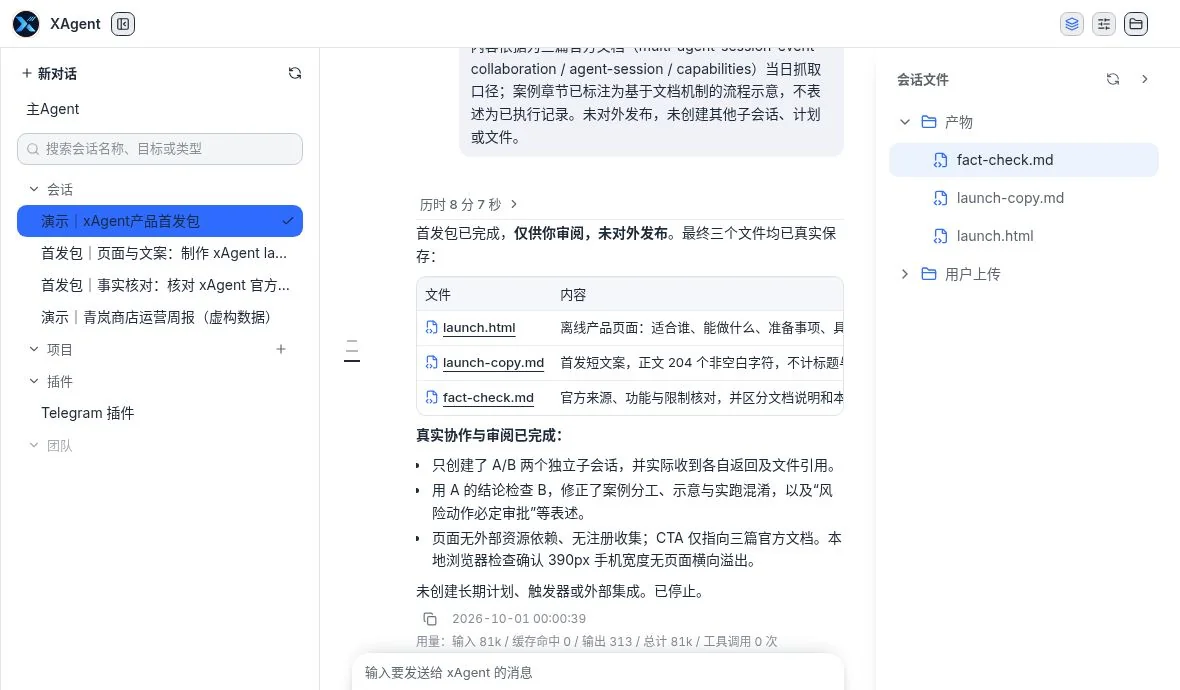
Session and file panel from the real launch-kit demonstration, completed with human review and follow-up instructions. Chinese UI; this shows actual file references, not a promise of unattended completion.
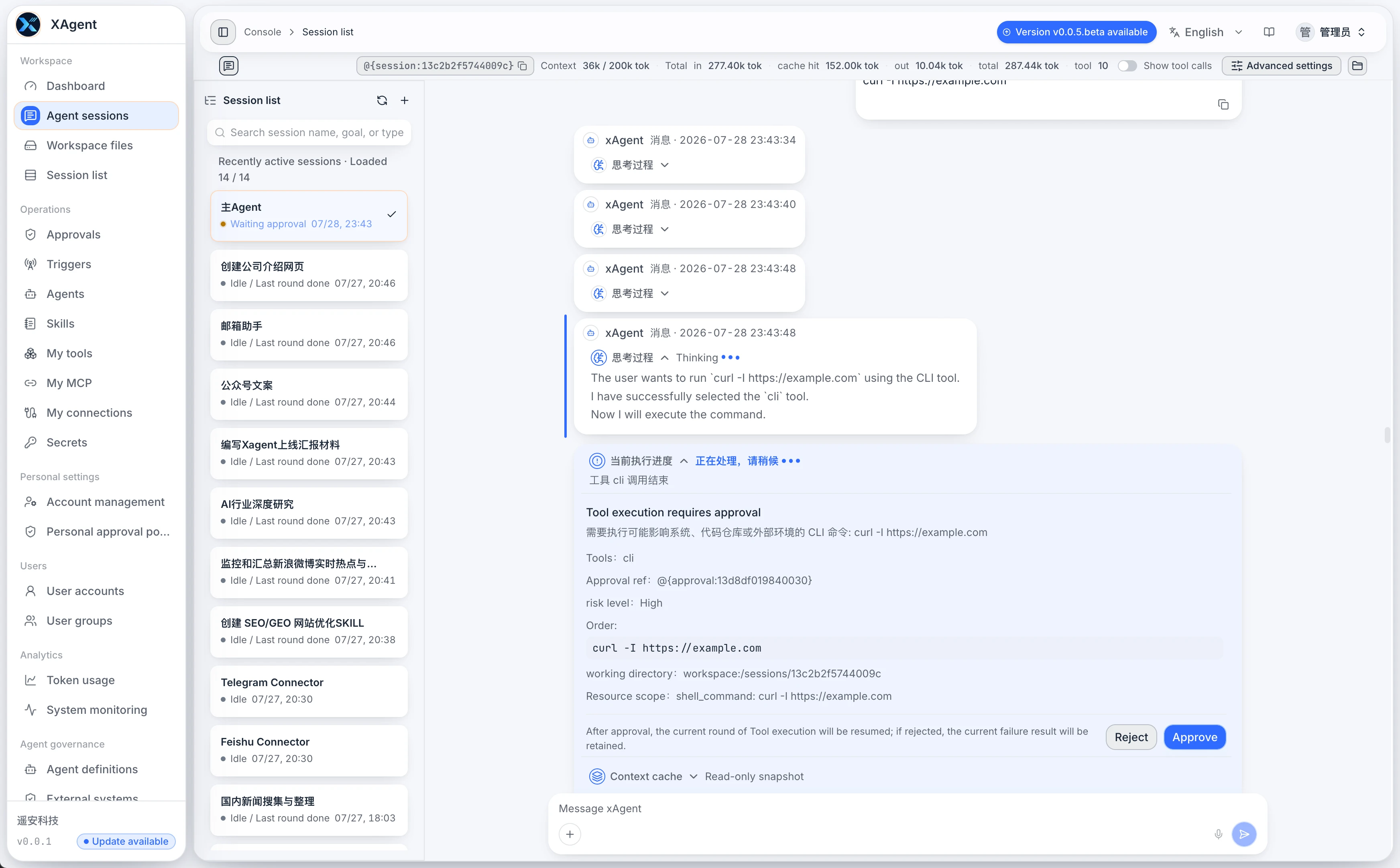
Earlier interface reference (retained)
When to Use It
Start from an Agent Session when you need to:
- Ask xAgent to read documents, web pages, spreadsheets, or existing materials.
- Generate summaries, reports, checklists, replies, plans, or data results.
- Communicate across multiple turns and add requirements gradually.
- Upload files, inspect generated files, or continue referencing Session artifacts.
- Follow Tool execution and the final result.
- Confirm whether certain actions may continue.
- Delegate work to a sub-session or return to the main Session to consolidate progress.
- Fine-tune prompts, Skills, Tools, models, or Secrets during a task.
Page Layout
The Agent Session page has several main areas:
| Area | Purpose | Common Actions |
|---|---|---|
| Session list on the left | Switch between the main Session and sub-sessions | Search Sessions, select a Session, refresh the list, right-click to change a title or copy a Session identifier |
| Top toolbar | View runtime information for the current Session | View tokens, context, and Tool call count; toggle Tool call visibility; open Advanced Settings or Session Files |
| Timeline in the center | Follow task execution and results | Read user messages, xAgent responses, reasoning, Tool calls, approvals, and status notices |
| Input area at the bottom | Continue submitting requirements | Enter messages, upload attachments, send, or stop the current execution |
| Session Files panel | View files related to the current Session | Refresh files and preview or download artifacts |
| Advanced Settings | Fine-tune capabilities for the current Session | Adjust the Agent Prompt, model policy, Secrets, resident Skills, and resident Tools |
Ordinary users usually only need the Session list, timeline, and input area. Advanced users can open Advanced Settings when they need to improve the current task.
Main Session and Sub-session
Agent Session shows two kinds of Sessions:
| Type | Think of It As | Suitable Work |
|---|---|---|
| Main Session | Overall owner | Discuss the goal directly, split tasks, create sub-sessions, and consolidate progress across Sessions |
| Sub-session | Dedicated executor | Handle an independent task delegated by the main Session, such as scheduled collection, research, email checks, or a specialized report |
You can send messages directly in both main Sessions and sub-sessions. The main Session is better for coordination and consolidation, while a sub-session is better for an independent goal.
After entering a sub-session, a Back to Main Session button may appear at the top. Use it to return to the overall entry point for further discussion or consolidation.
Confirm That Collaboration Actually Finished
Creating a Sub Session, delivering its task, producing a result, and returning that result to the coordinator are separate steps. The current messaging protocol does not generate a business result merely because creation or sending succeeded. If a return is needed, explicitly ask for the complete result to be sent to the exact source Session. The coordinator can continue consolidation when the reply arrives.
If the Main Session has no new result, open the relevant Sub Session and check for missing materials, pending approval, execution failure, or an answer left only in that Sub Session. Address the actual blocker with one clear follow-up rather than creating the same task again. File references still require target access.
Same-user Session collaboration, WorkGroup orchestration, and remote A2A operate at different layers. Orchestration manages Agent and connection configuration; remote A2A has separate authentication and task receipts. Neither implies cross-user Session sharing. See the collaboration guide below for message semantics.
Basic Usage
Create or Enter a Session
- Open Agent Session from the left menu.
- If Sessions already exist, select a Session card on the left.
- To start new work, use the create entry point or ask the main Session to create a new Agent Session.
- Describe what should be completed in the input box.
- If files are required, upload the attachments first and then identify which file to process.
Write the First Message
A good message usually contains four kinds of information:
| Information | Example |
|---|---|
| Goal | Organize these meeting notes |
| Material | Use the meeting.md file I just uploaded |
| Requirements | Group by Decisions / Action Items / Risks |
| Result | Save as Markdown and provide a summary in the Session |
For example:
Read the meeting.md file I just uploaded. Organize the meeting decisions, action items, owners, and risks, save the result as Markdown, and give me a summary in the Session.
Refine the Result
If the direction is correct but the result needs improvement, continue in the same Session:
- "Keep the key evidence from the source text."
- "Change the output to a table."
- "Add a priority column."
- "Do not send the email. Show me the draft first."
- "Save the final version to the Workspace."
The same Session preserves context and is better for continuous refinement. Create a new Session only when the goal has become a different task or you do not want the current context to continue.
Reading the Timeline
Several kinds of content may appear in a Session:
| Content | Meaning | What You Should Do |
|---|---|---|
| User message | A task, additional instruction, or attachment you submitted | Confirm that the goal and materials are clear |
| xAgent response | An explanation, result, or interim conclusion from xAgent | Read the result, ask follow-up questions, or confirm |
| Reasoning | xAgent's task breakdown or execution approach | Use it only as process context; you do not need to inspect every line |
| Tool call | xAgent is reading a file, accessing a web page, generating a file, or calling an external system | Wait for completion and inspect details when necessary |
| Tool observation | A result returned by a Tool | Ordinary users usually only need the organized final result |
| Waiting for approval | A risky action requires human approval | Review the action, target, and impact before allowing or rejecting it |
| Waiting for confirmation | The system needs additional fields, a selection, or confirmation of a plan | Complete the requested information in the page |
| Status notice | Running, retrying, context compression, connection recovery, or another state | Check whether you can keep typing or need to wait |
| Failure notice | One step did not succeed | Add materials, authorize access, adjust the requirement, or retry based on the message |
The top toolbar includes a Show Tool Calls switch. When it is off, completed Tool calls are hidden and the timeline is easier to read. Turn it on when troubleshooting or confirming what a particular step did.
Input and Attachments
Use the input area at the bottom to continue sending messages to the current Session. Common actions include:
- Entering the task goal directly.
- Clicking the plus button to upload a file or image.
- Pasting a screenshot, text, or file.
- Adding instructions while a task is running.
- Stopping the current execution when necessary.
When files are involved, describe them like this:
- "Read the file I just uploaded."
- "Process
report.csvin the Workspace." - "Save the result as
summary.md." - "After generating the HTML report, give me a preview entry point."
Do not enter an arbitrary path on your computer or treat an internal server path as an accessible file. Users only need to reference filenames or Workspace paths visible in the page.
If an attachment is still processing, the page prevents sending. Wait until processing is complete so xAgent can access the file content.
Tool Calls and Approvals
xAgent may call Tools to complete a task, such as reading or writing files, accessing web pages, processing spreadsheets, sending email, invoking an AgentPlugin, or creating a sub-session.
Ordinary users do not need to remember Tool names. Describe the action you want. When an action carries risk, the system intercepts it through an approval or confirmation flow.
Actions that require particular attention include:
- Sending email, WeChat, or another external message.
- Deleting files or modifying important data.
- Accessing an external system or calling an internal API.
- Creating a sub-session or long-running Trigger.
- Using a Secret, AgentPlugin, or high-risk Tool.
When an approval appears, first check what it will do, which object it affects, and whether it sends content externally. Allow it only after confirming the details. If uncertain, reject it and add clarification in the Session.
Session Files
The Session Files entry in the top toolbar shows files related to the current Session. Use it to:
- Find materials that were just uploaded.
- Inspect intermediate files generated by Tools.
- Preview Markdown, HTML, spreadsheets, or reports.
- Download the final artifact.
If a task generated a file but no entry appears in the message, open the Session Files panel and refresh it once.
Work Records and Stage Continuity
In v0.0.22.beta, Work Records opens below the input area; its entry is hidden when there are no records. Use it to inspect stage conclusions, unresolved questions, and evidence through current records, historical summary versions, process entries, and attachment previews. Attachment and Workspace links can be opened directly.
- Ask the Agent to record conclusions, evidence, blockers, and next steps by stable topic.
- Append new developments; when revising a summary, retain increments it has not covered.
- Review the revision, original sources, and actual artifacts before accepting the result.
active only means a record remains in the default directory; archived removes it from that directory while retaining history. Neither proves validated business success. Work records belong to the current Session and differ from cross-Session Memory or a downloadable final file.
Work records and Session archiving follow the v0.0.22.beta release notes; older versions may have different entry points and fields.
Archive and Restore a Session
v0.0.22.beta supports Session archiving. It stops that Session’s execution and related scheduling while retaining messages, work records, tasks, waits, and files. Archiving is not deletion. Reviewing history, restoring the Session, and continuing execution are separate decisions. Restoring a Session does not automatically resume work; execution still requires an explicit continuation action.
Default Session queries and the sandbox hide archived Sessions. Include archived history explicitly when looking for it. Main Sessions and AgentPlugin-dedicated Sessions remain managed through their existing entry points, and deletion remains available. Do not use deletion just to pause work.
Before restoring, inspect the original waits, pending approvals, and external outcomes to avoid repeating an action that already took effect. Archiving a work record only changes its default visibility; it does not archive the whole Session.
Advanced Settings and Task Tuning
Advanced Settings configures capabilities for the current Session. It is optional and intended for experienced users who need to fine-tune a task while it is running.
Common settings include:
| Setting | Purpose | When to Adjust It |
|---|---|---|
| Agent Prompt | Change how the current Session works and which constraints it follows | The task needs a clearer role, boundary, or output style |
| Model and Provider Policy | Select the model or request policy for the current Session | The current model is not suitable for reading, reasoning, writing, vision, or Tool calling |
| Secrets | Select Secret keys that the current Session may reference | A Tool needs access to email, an API, or an external system |
| Resident Skill | Keep specific Skills in the current Session context | A long task must consistently follow a fixed work method |
| Resident Tool | Keep specific Tools in the current Session Tool list | The current task depends on fixed Tools for a long period |
Encrypted environment variables expose placeholder references. This does not mean all environment variables are hidden from the model: unencrypted text can be read on demand. See environment variables for mode selection and confidentiality boundaries.
Task tuning is not intended to shift configuration work onto users. It gives advanced users a way to gradually adjust context, capabilities, and models when a task needs higher quality, until the task reaches a better completion state.
Context and Long Sessions
The top toolbar shows context and token information to indicate context usage in the current Session. Ordinary users do not need to understand every number. The important points are:
- Longer Sessions require more context management.
- xAgent may compress the context.
- Some Session operations are frozen during compression.
- Execution can continue after compression finishes.
If a Session is already long, ask xAgent to summarize the current state before continuing.
Session Commands
The input area supports a small set of commands for troubleshooting or managing the current Session:
| Command | Purpose | Note |
|---|---|---|
/refresh_messages | Resynchronize messages in the current Session | Use when message display is abnormal |
/compress | Manually compress the current Session context | Use before continuing a long Session |
/clear-history | Clear message history in the main Session | Available only in the main Session |
/delete | Delete the current sub-session | Available only in a sub-session |
Commands may be temporarily unavailable while the current Session is running or waiting for confirmation.
Common Scenarios
Organize Materials
Read the three materials I uploaded. Organize their shared conclusions, disagreements, and open questions, and output the result as a Markdown table.
Generate a Report
Create a weekly report from the sales data in the Workspace. Include key metrics, anomaly explanations, possible causes, and recommendations for next week, then save it as an HTML report.
Handle an External Message
Review the latest customer message and draft a reply. Do not send it directly.
Work in Stages
List the processing plan first. Wait for my confirmation before reading files and generating the result.
Tune the Current Task
This task needs a more formal report. Switch to a model better suited to long-form writing and reorganize it as Background / Findings / Recommendations / Risks.
Important Notes
- Review the content before continuing with sending, deletion, external APIs, or sensitive files.
- Do not put passwords, tokens, or verification codes directly in a Session.
- When a task has many materials, define the scope and delivery format first.
- Capture a repeated workflow as a Skill when stable reuse is required.
- If the current task needs higher quality, tune it gradually in the same Session instead of frequently creating new Sessions.
- If a Session is already long, ask xAgent to summarize its current state before continuing.
Related Concepts
- Shortcut Instruction Protocol: Commands, Directed Sending, and Object References
- How AI Agents Switch Models, Skills, and Prompts During a Task
- How Multiple Agents Collaborate Through Session Events