xAgent AI Agent Setup and Management: Main Agents and Sub-Agents
Choose an Agent entry point that fits the task, then describe the goal in a Session. Create a dedicated Agent when its default capabilities, task boundaries, or safety requirements need to be reused.
Distinguish Entry Points from Sessions
- Agent entry point: stores a reusable purpose, default model, and capability configuration managed on this page.
- Main Session: handles the overall goal, task delegation, and progress summaries.
- Sub-session: handles an independent goal delegated by the main Session and can receive follow-up messages directly.
Preparing an entry point and starting a task are separate steps. For everyday work, see Choose an Entry Point for a Task. For reusable configuration, see How to Set Up an AI Agent. For Session controls, see Agent Sessions.
Who This Is For
This page is for users and administrators who need to select, view, or maintain task entry points.
What It Is
Agent Management maintains entry points for different work scenarios. Ordinary users can think of it as a list of different work assistants: some are suitable for general questions, some for creating Skills, and others for a specific business workflow.
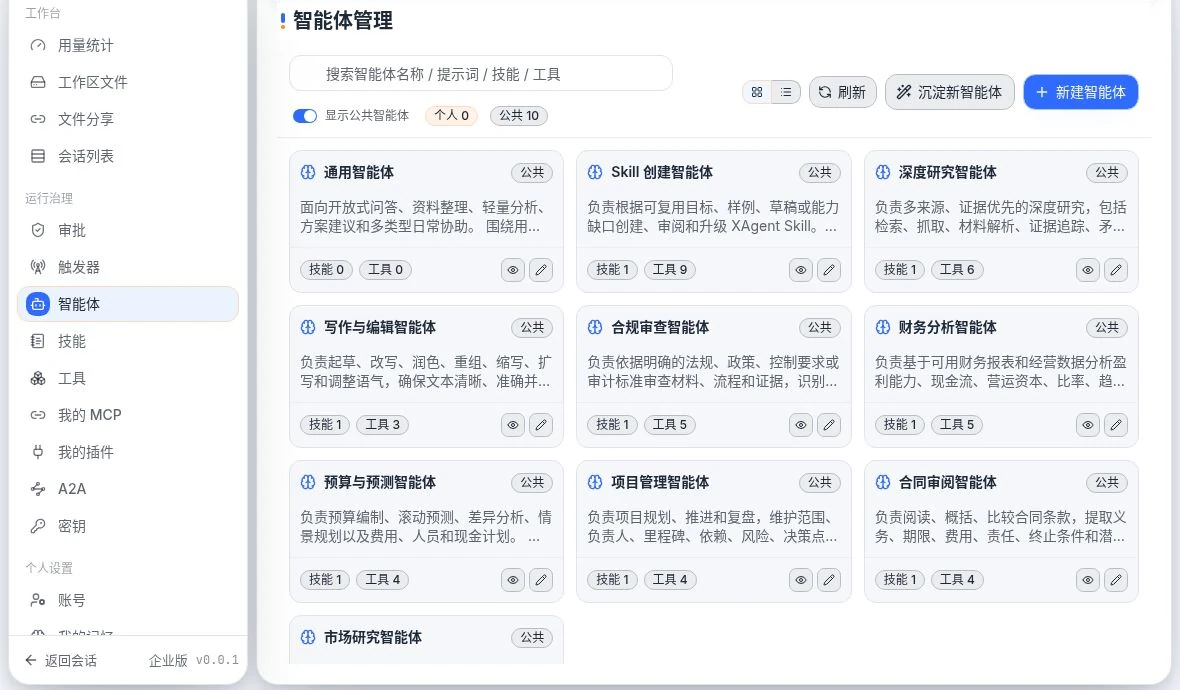
Agent list in the reviewed instance: public entries, search, and personal/public counts. Chinese UI; card visibility does not establish that every Agent was tested.
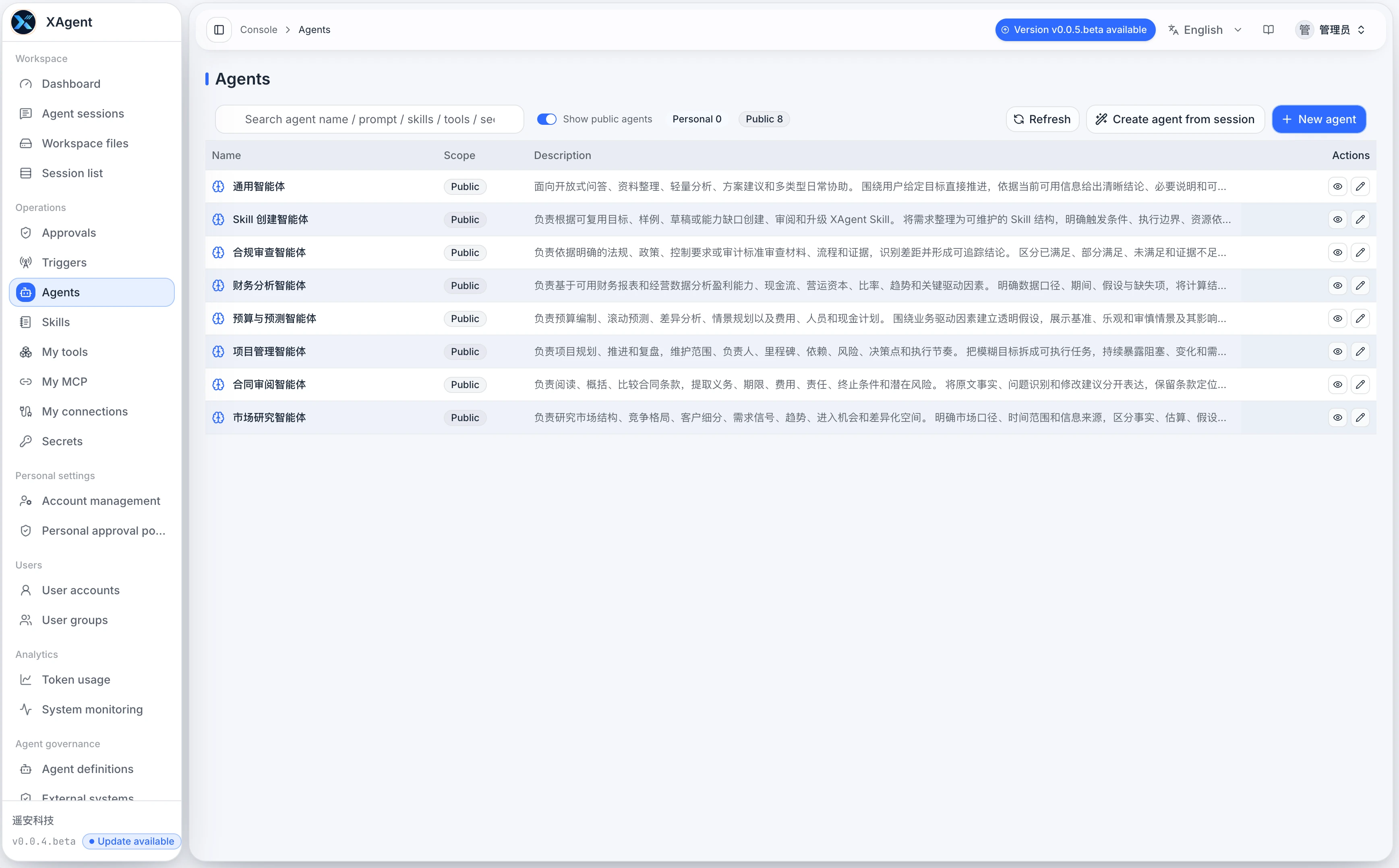
Earlier interface reference (retained)
How to Set Up an AI Agent
In xAgent, setting up an AI Agent means preparing one entry point for a repeatable task: define its purpose, default model, available Skills, Tools, and safety boundaries, then let users create Sessions from that entry point. It is not copying a prompt for every task, and it does not mean an Agent acts without controls.
An administrator, or a user with the relevant permission, can prepare an entry point as follows:
- Create or copy a personal or public Agent in Agent Management.
- Use its name and short description to state the intended task, such as contract-material organization or confidential-material handling.
- Select a default model configuration that fits the task. For restricted material, first confirm the model service and data boundary.
- Select only the Skills and Tools needed for the work. High-risk Tools remain subject to approval policies.
- Save the entry point and validate its output, file handling, and approval behavior with a real but non-sensitive task before sharing it as a public entry point.
For a one-off task, start with the general Agent and state the goal in the Session. Create a dedicated Agent only when its task boundary, default capabilities, or safety requirements need to be reused.
When to Use It
Open Agent Management when you need to:
- See which work entry points are available.
- Choose an assistant better suited to a task.
- Add, adjust, or publish a common entry point as an administrator.
- Confirm whether an entry point includes fixed Skills, Tools, or key references.
Ordinary users do not usually need to modify Agents often. Once an administrator has prepared public Agents, users can select and use them directly in a session.
Reading the Page
Each card represents an available entry point. Common information includes:
| Information | Meaning |
|---|---|
| Name | The entry point name shown to users |
| Description | The work this entry point is suited to handle |
| Public / Personal | Public entries are for multiple users; personal entries affect only the current user |
| Skill count | The number of task methods associated with the entry point by default |
| Tool count | The number of action capabilities available by default |
| Key count | The number of security credentials referenced by the entry point |
| Read-only | The current user can view or use it but cannot modify it directly |
Basic Usage
View Available Entry Points
- Open Agent Management.
- Use the search box with a name, prompt, Skill, Tool, or key keyword.
- Use the personal and public counts to understand the current list scope.
- Select a card to view its details.
If you are an ordinary user, focus on the name and description, then choose the entry point closest to your task.
Choose an Entry Point for a Task
Open Agent Session, select an appropriate Agent, and then submit the task. The following rules can help:
| Task type | Suggested choice |
|---|---|
| The task does not fit a clear category | General-purpose Agent |
| You need to create or refine a Skill | Skill Creation Expert |
| You need a fixed business workflow | A business-specific Agent prepared by an administrator |
| You need an external system capability | An Agent already bound to the relevant Tools or connections |
If you are not sure which one to choose, start with a general-purpose entry point and state the goal in the task.
Create an Entry Point as an Administrator
Before creating an Agent, prepare the following:
- Name: Make its purpose obvious at a glance.
- Short description: Explain the tasks it is suited to handle.
- Default expectations: Define output style, confirmation rules, and quality requirements.
- Available Skills: Select stable, reusable methods.
- Available Tools: Bind only the Tools genuinely needed to complete the work.
- Security boundaries: Let approval policies control sensitive actions.
Do not put temporary accounts, passwords, tokens, or one-off task content into an Agent description.
The default model comes from the administrator-configured model list. Its Provider, Base URL, key, and capabilities stay in server-managed Model Configuration and should not be written into an Agent prompt. See Model Configuration for the fields and connection checks.
Common Scenarios
Prepare a General Entry Point for a Team
Create a general-purpose Agent for everyday questions, document organization, lightweight analysis, and solution suggestions. Keep it simple and avoid binding too many specialized rules.
Prepare an Entry Point for Recurring Work
If a team frequently performs the same kind of work, such as weekly reporting, customer replies, contract review, or investment research organization, create a specialized entry point and associate the relevant Skills.
Provide an Extended Entry Point for Users Who Need Fine Tuning
When permissions allow, ordinary users can also create personal entry points to try new Skills or Tools. Most users can work directly with public entry points prepared by administrators; experienced users can later fine-tune a personal entry point and have an administrator turn a stable version into a public one.
Notes
- An Agent is an entry point, so more is not always better.
- Write names and descriptions for users rather than filling them with technical terms.
- Changes to public entry points affect multiple users; confirm the purpose before editing.
- Tool and key use remains controlled by permissions, connections, and approval policies.
- Do not use unfinished or unstable entry points as the main entry point for ordinary users.