Workspace Pages
Workspace-related pages support task submission, usage review, materials, and delivery checks. This page preserves their instructions and UI examples. Simple/advanced-mode differences apply to versions that still offer that setting; follow the entries exposed by your installed version and account permissions.
Choose the Right Entry Point
| Your goal | Start here | Check afterward |
|---|---|---|
| Submit work, add materials, or continue a task | Agent Sessions | Results, files, and pending approvals in the timeline |
| Find uploaded materials or generated files | Workspace Files | File contents, source task, and downloaded output |
| Give external visitors access to a file | File Shares | Expiry, anonymous access, and original-download permission |
| Review usage or execution state | Dashboard | Date range, call totals, and Session status |
| Search and manage more historical Sessions | Session List | Current menu, Session goal, and status; advanced mode applies only to earlier versions |
The screenshots below explain each page’s purpose; use the menu names and layout in your installed version. If an entry is missing, check the deployed version and permissions; menu mode applies only to versions that offer it.
Simple and Advanced Modes
Versions that offer this setting use two menu modes to balance ease of use and configurability. Simple mode keeps only the entries needed for daily work, so it is the recommended starting point for most users, especially people who are new to AI. With fewer menus, users can submit tasks directly without being distracted by settings they do not need.
Advanced mode adds orchestration and capability-management entries for users who need to find historical sessions, configure automation, manage Agents, Skills, Tools/MCP, or maintain personal approval policies. Earlier administrators could enable advanced mode per account; it changed menu visibility, not permissions. User menus in source checked on 2026-10-01 no longer filter by that switch.
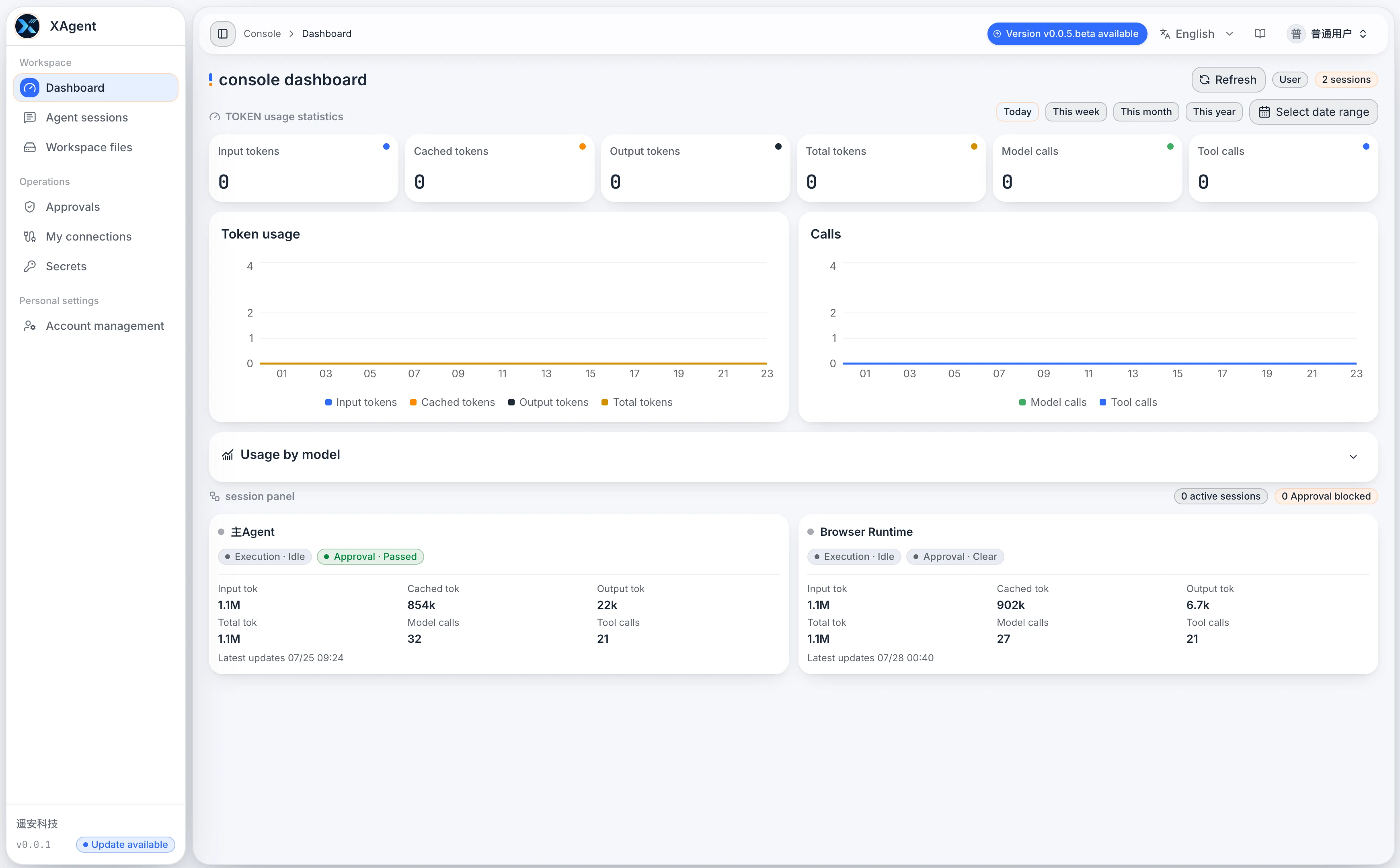
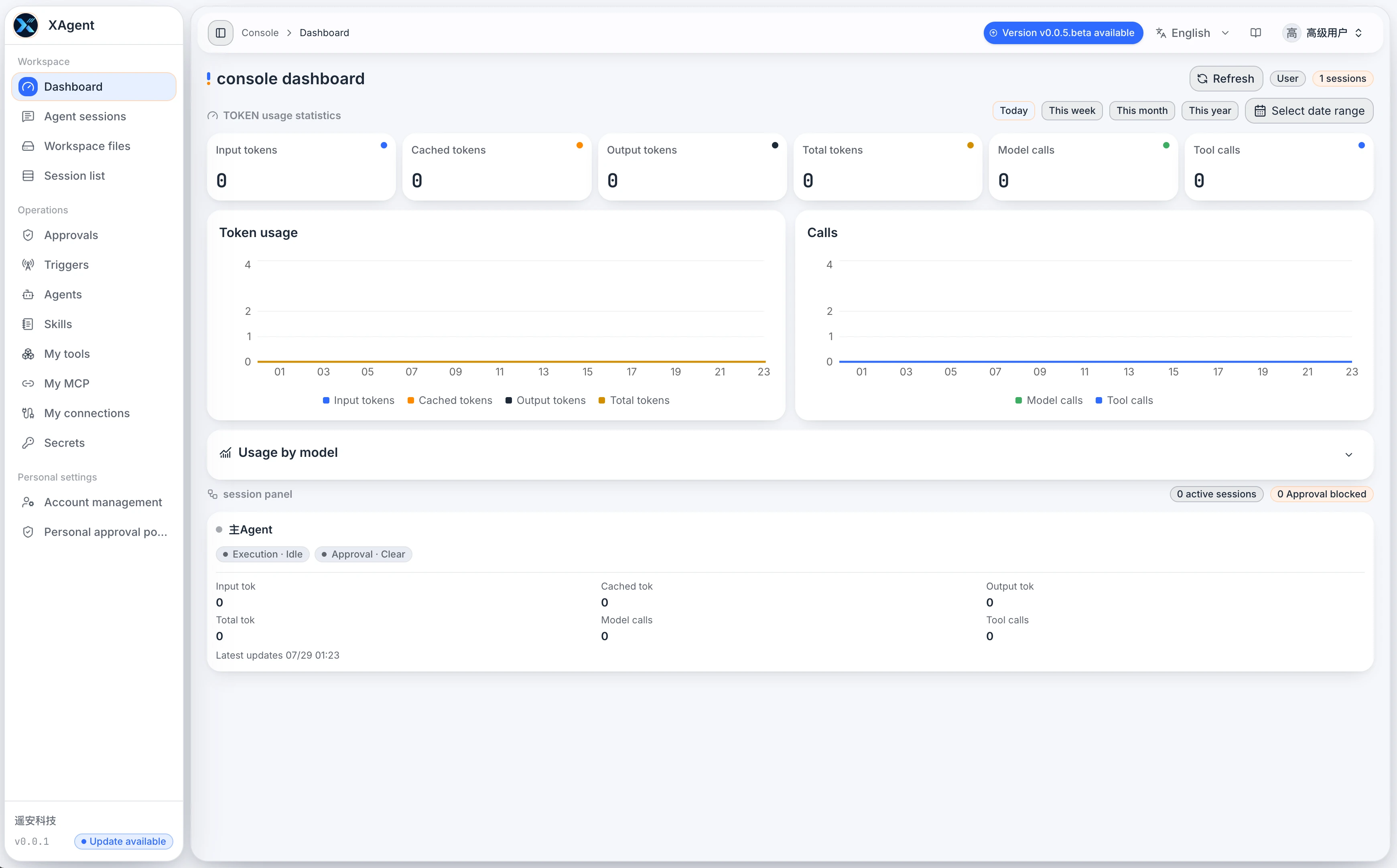
| Mode | Menu difference | Recommendation |
|---|---|---|
| Simple | Dashboard, Agent sessions, Workspace files, File Shares, Approvals, Plugin Connections, Secrets, Account management | Default mode for starting work directly |
| Advanced | Everything in Simple, plus Session list, Triggers, Agents, Skills, My tools, My MCP, and Personal approval policy | Enable when more management or orchestration is needed |
Simple mode
Advanced mode
Dashboard
Menu: Workspace > Dashboard
Visibility: All users
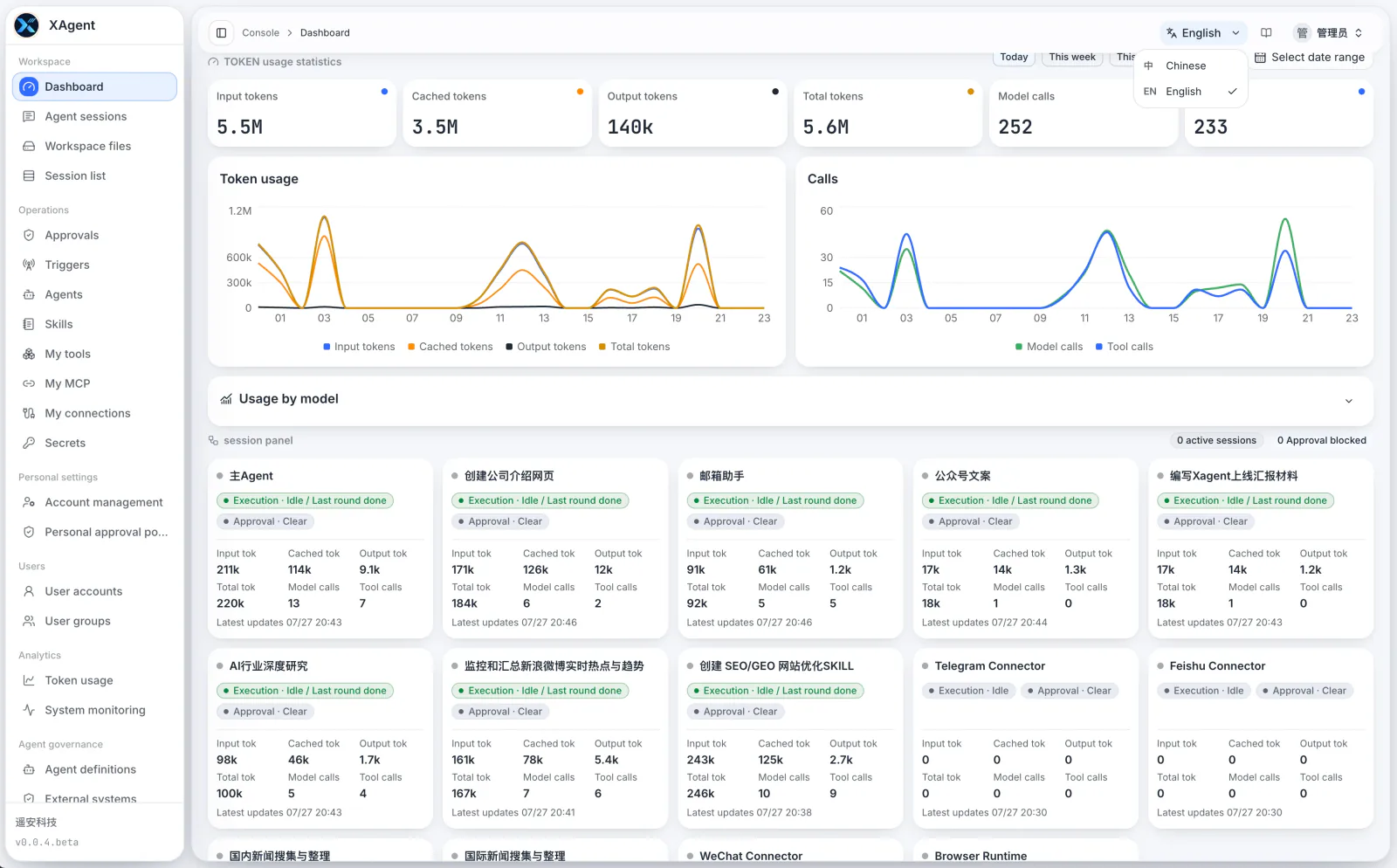
- Review input, cached, output, and total tokens together with model and tool call counts.
- Switch between today, week, month, year, or a custom date range.
- Use the charts to compare usage and call trends.
- Open a session from the session panel and check execution or approval blocking.
Agent Sessions
Menu: Agent Sessions. The version shown below uses Workspace > Agent Sessions; newer layouts may use a separate Session entry point.
Visibility: All users
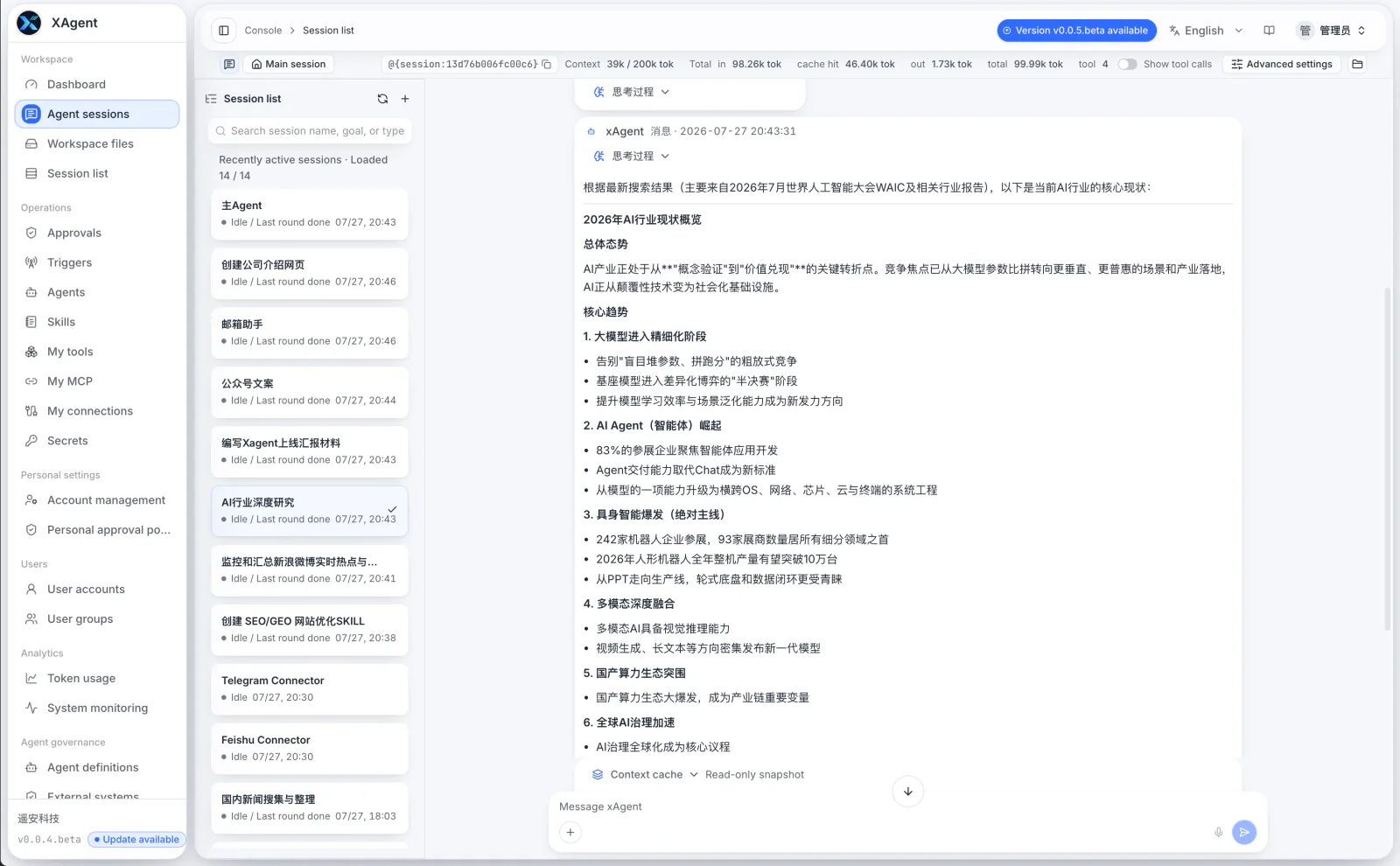
- Manage recent sessions and create new ones from the left panel.
- Read messages, tool calls, approvals, files, and task results in the timeline.
- Check context, token state, tool-call visibility, and advanced settings at the top.
- Add text, files, or voice input and refine a task while it runs.
See Agent Session and Shortcut Instructions for complete workflows.
Workspace Files
Menu: Workspace > Workspace Files
Visibility: All users
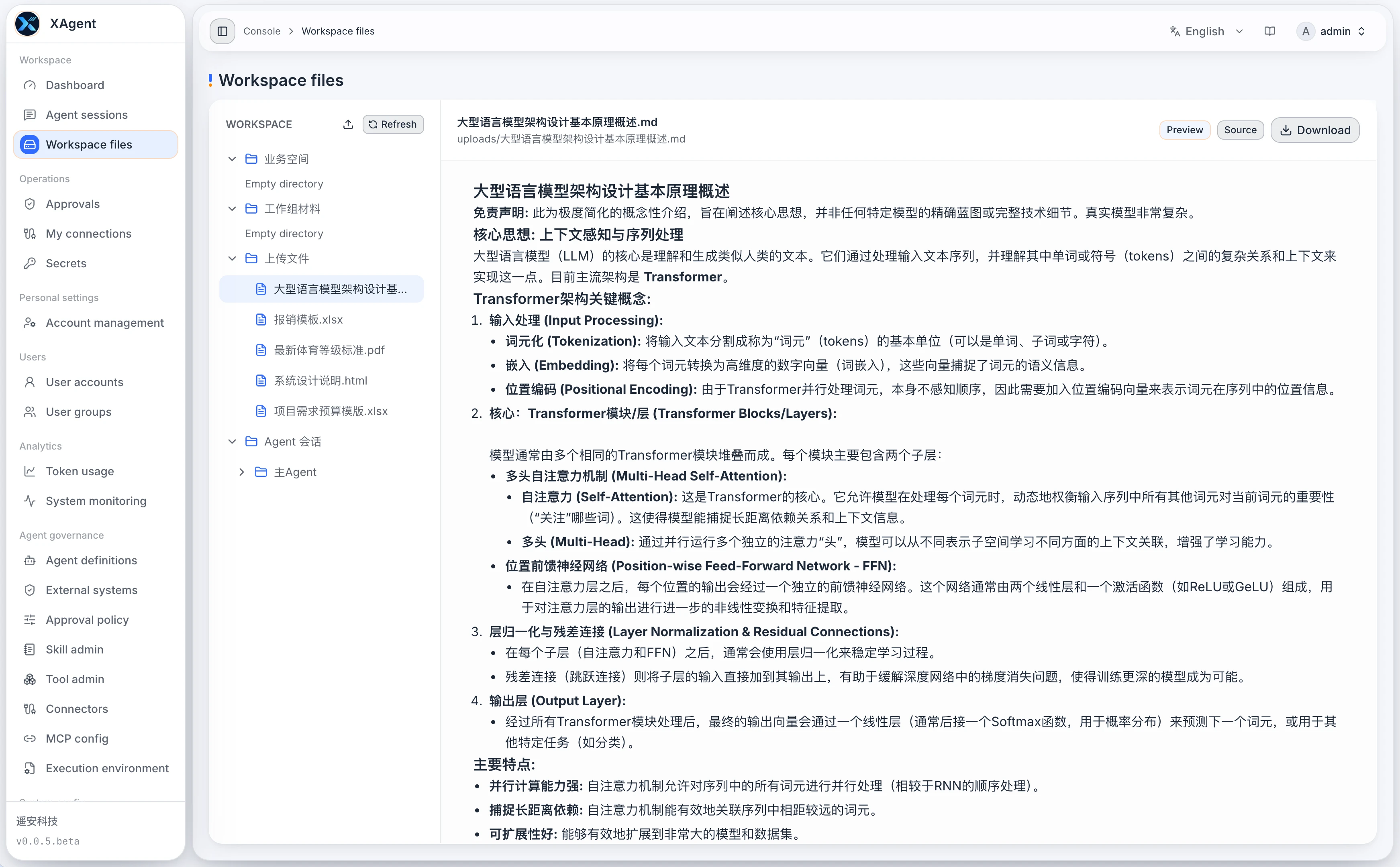
- Browse business-space, work-group, uploaded, and Agent Session files.
- Select a file to preview text, images, PDF, spreadsheets, or HTML output.
- Upload, refresh, download, or copy a readable workspace path.
- This view contains authorized workspace projections, not arbitrary host directories.
See Workspace Files for details.
File Shares
Menu: Workspace > File Shares
Visibility: All users; creating links requires an administrator-enabled policy
Inspect links, visits, and download totals by file; copy or revoke links and inspect individual visits in the details. Sharing is disabled by default, and every link expires. See Share Files with Expiring Links.
Session List
Menu: Workspace > Session List
Visibility: Determined by account permissions and the current menu. The version shown below requires advanced mode
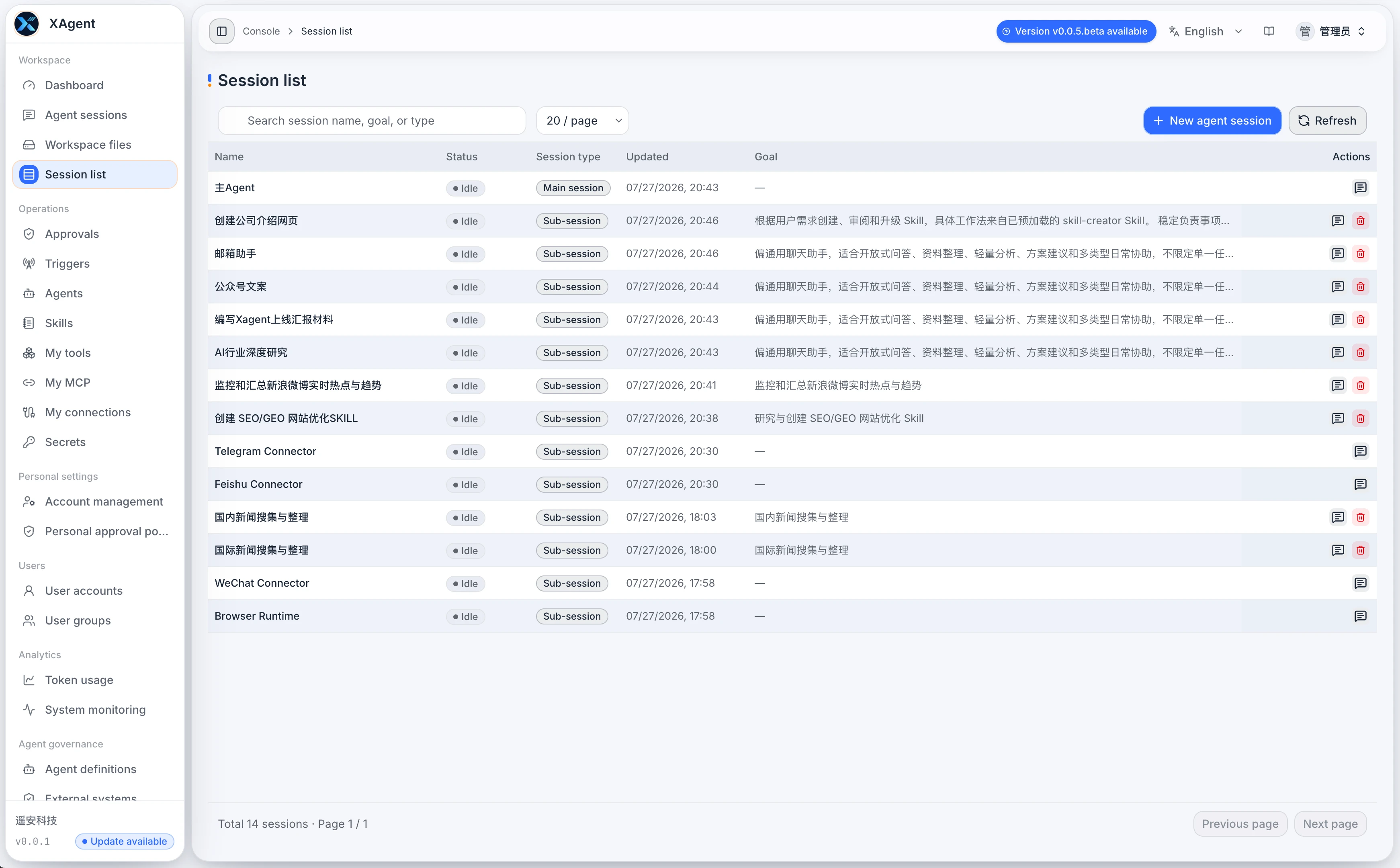
- Search by session name or target type.
- Compare state, main or child type, update time, and target summary.
- Open a session or remove an obsolete child session when permitted.
- Use this page for management; the execution timeline remains in Agent Sessions.
Archive or Delete?
From v0.0.22.beta, archive a supported Session when you want to stop its work while retaining its history. Archiving stops execution and associated scheduling while preserving messages, work records, tasks, waits, and files. Default queries and sandbox views hide archived Sessions.
Archived Sessions do not consume Free Session capacity; restoring one checks capacity across the deployment again. Explicitly restore the original Session before continuing, then review its state, pending approvals, and scheduling instead of creating a duplicate task. Main and plugin-specific Sessions retain their dedicated management paths. See archive and restore for scope and steps.