User Management Pages
Version scope: current-field and behavior corrections below were checked against source
43d2698on 2026-10-01. Older public binaries may differ; verify your installed version before following a changed UI or operation.
User Management is in the separate /admin console and is available only to administrators. It maintains account state, roles, and group membership. Non-administrators opening the admin entry are redirected to the user app.
Version note: The retained
v005illustrations include the former feature-level / simple-and-advanced-mode field. The current user editor no longer provides that field, and user menus no longer hide features based on it. Do not look for that switch using the old image.
User Accounts
Menu: Admin console > Users > User accounts (/admin/users/accounts)
Visibility: Administrators
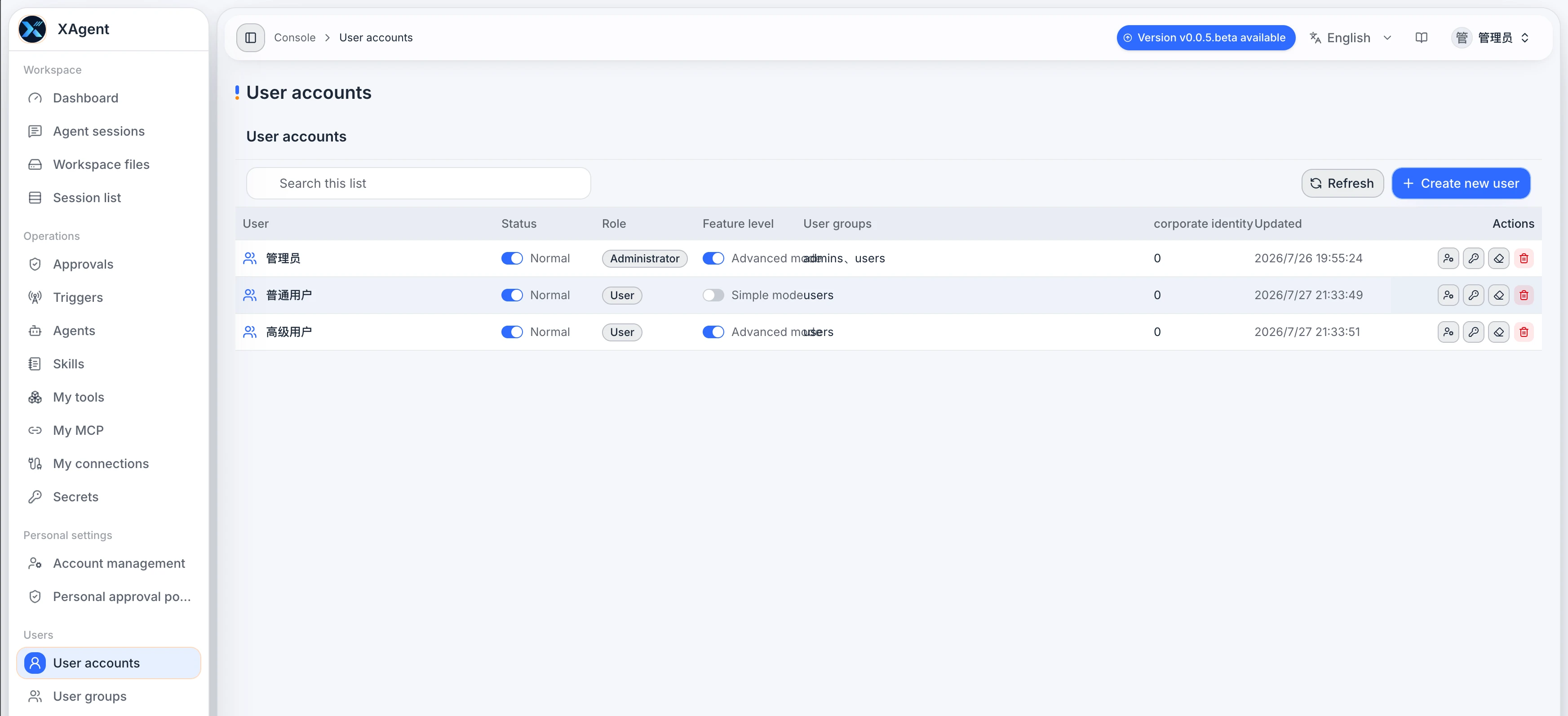
- Create a user with a login name, display name, initial password, and role.
- Enable or disable accounts and assign user or administrator roles.
- Distinguish roles from feature entry points:
useruses the user app, whileadmincan also enter the admin console. There is no current simple/advanced-mode menu switch. - Change group membership, reset passwords, or delete unused accounts.
Recommended sequence: create the account, confirm its role and groups, then verify its user-app access. Prefer disabling for a temporary access restriction. Before resetting a password or deleting an account, verify the identity and confirmation details to avoid acting on a similarly named user.
User Groups
Menu: Admin console > Users > User groups (/admin/users/groups)
Visibility: Administrators
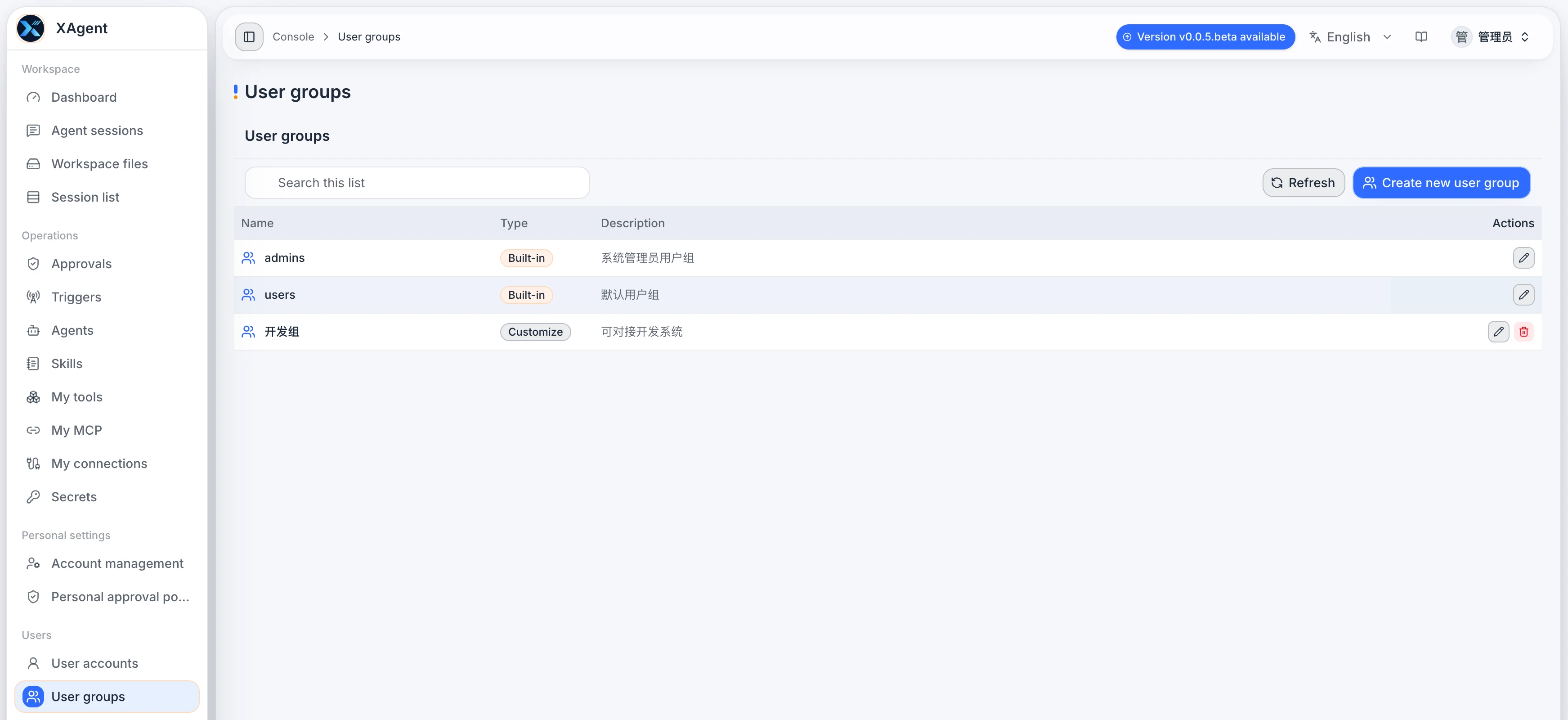
- Review built-in and custom groups.
- Create or edit a group’s name and description; maintain membership in the user-account editor.
- Built-in groups carry stable permission meaning and should not be repurposed as temporary labels.
- Built-in groups have no delete action; custom groups can be deleted after their impact is checked.