Operations Pages
Version scope: baseline page fields were checked against source
43d2698on 2026-10-01. The marked 0.0.22 additions follow the v0.0.22.beta release notes. Verify your installed version if the UI or behavior differs.
Operations covers task control and capability configuration for the signed-in user under /app. The current menu no longer hides these pages behind simple or advanced mode. Resource access and executable actions still depend on account permissions, service readiness, and approval policy. Global administration is in the separate /admin console.
Screenshot note: The retained
v005images illustrate fields and operations. Some older menu names and layouts have changed; the menu paths below describe the current version.
Approvals
Menu path: Operations > Approvals (/app/approvals)
Visible to: All users
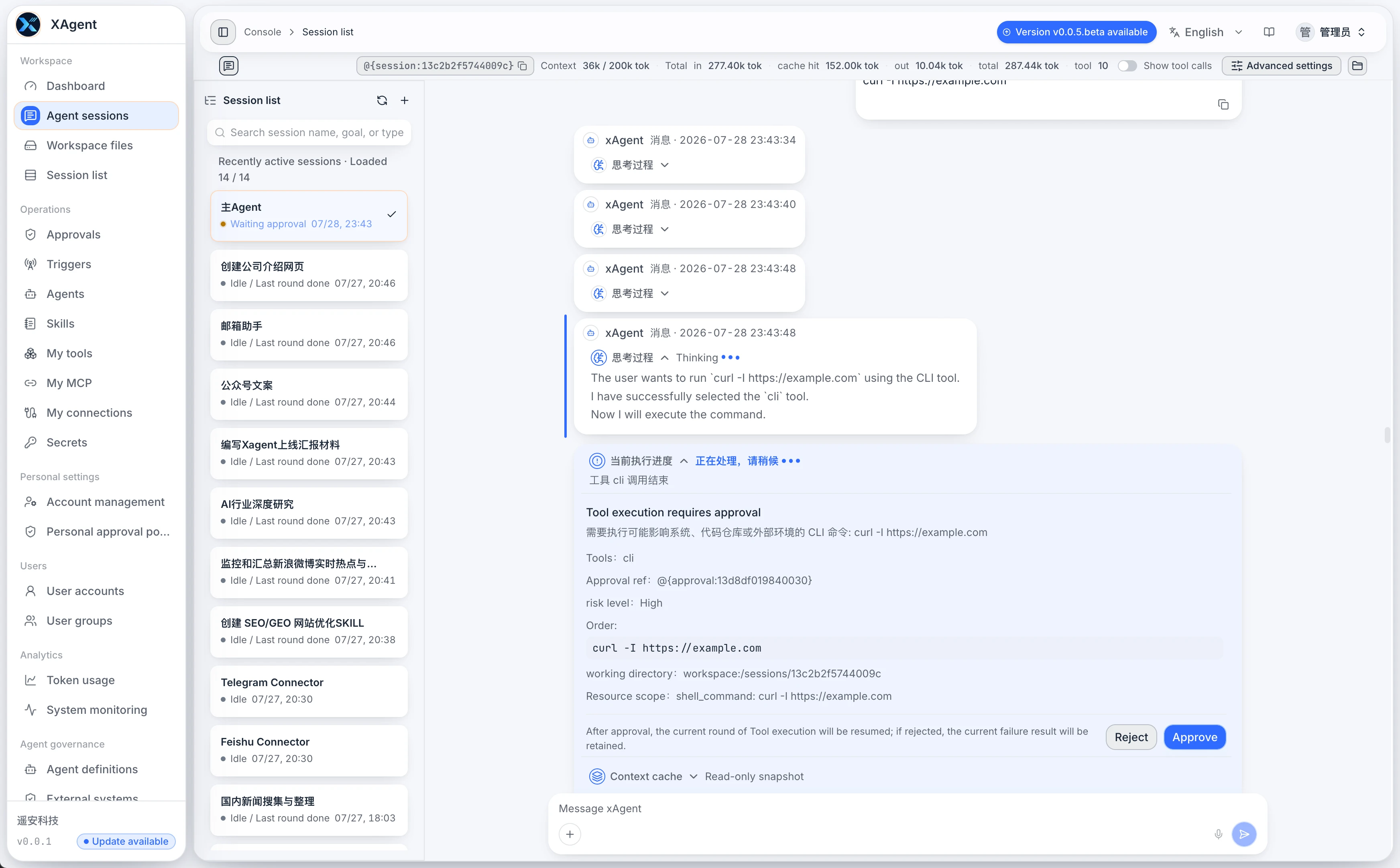
The Approvals page centralizes sensitive actions requested during tasks:
- View pending, approved, and rejected requests.
- Check the originating Session, Tool, risk level, parameter summary, and reason.
- After approval or rejection, the result returns to the original Session so execution can continue.
- When a Session waits for approval, the system attempts to notify all available IM messaging channels for the current user, including for Web-originated tasks. Reply with
@{approval:approval-id} approveor@{approval:approval-id} rejectas shown in the notice. The first accepted valid decision takes effect.
Trigger Management
Menu path: Operations > Triggers (/app/triggers)
Visible to: The signed-in user
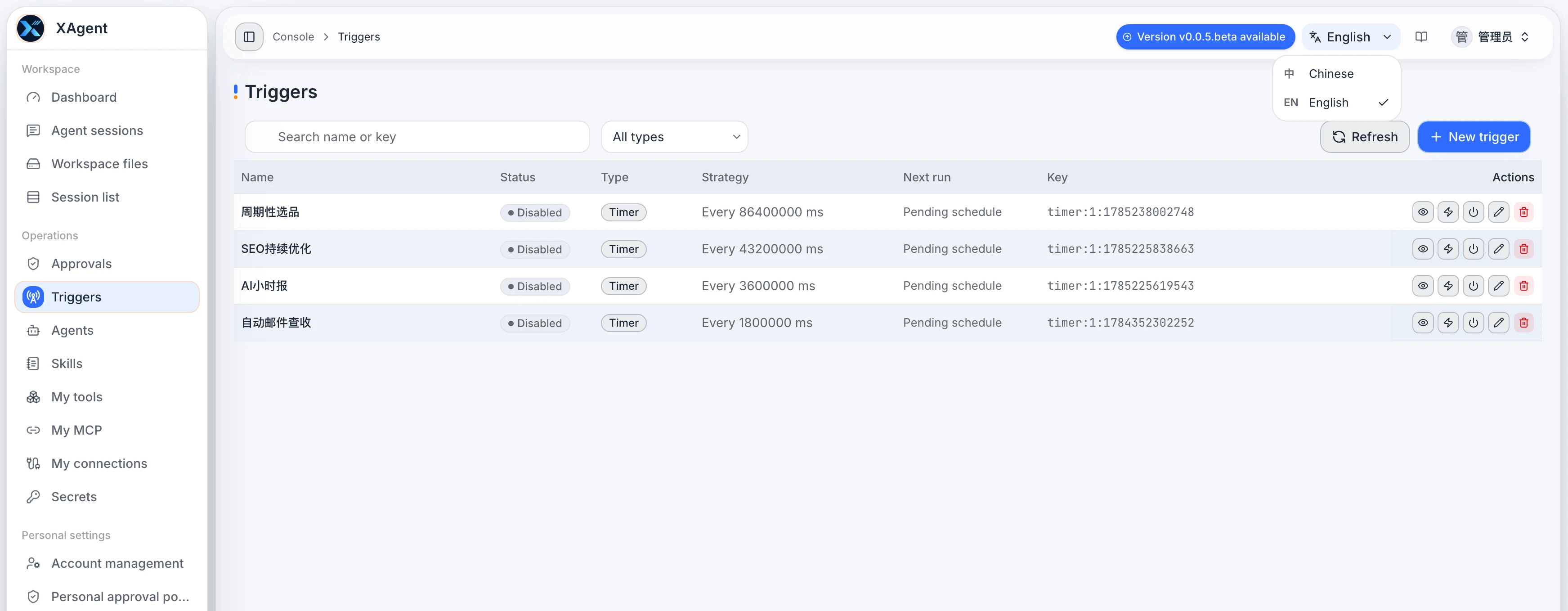
Triggers start tasks automatically based on time or events:
- Search Triggers and filter by type.
- View enabled status, scheduling policy, next run time, and stable key.
- Create, run manually, enable or disable, edit, and delete Triggers.
- Inspect the target Session, activation context, successful submission count, and latest error in details. A successful trigger means its message was submitted, not that the task finished.
See Trigger Management for the complete workflow.
Agent Management
Menu path: Operations > Agents (/app/agent-definitions)
Visible to: The signed-in user
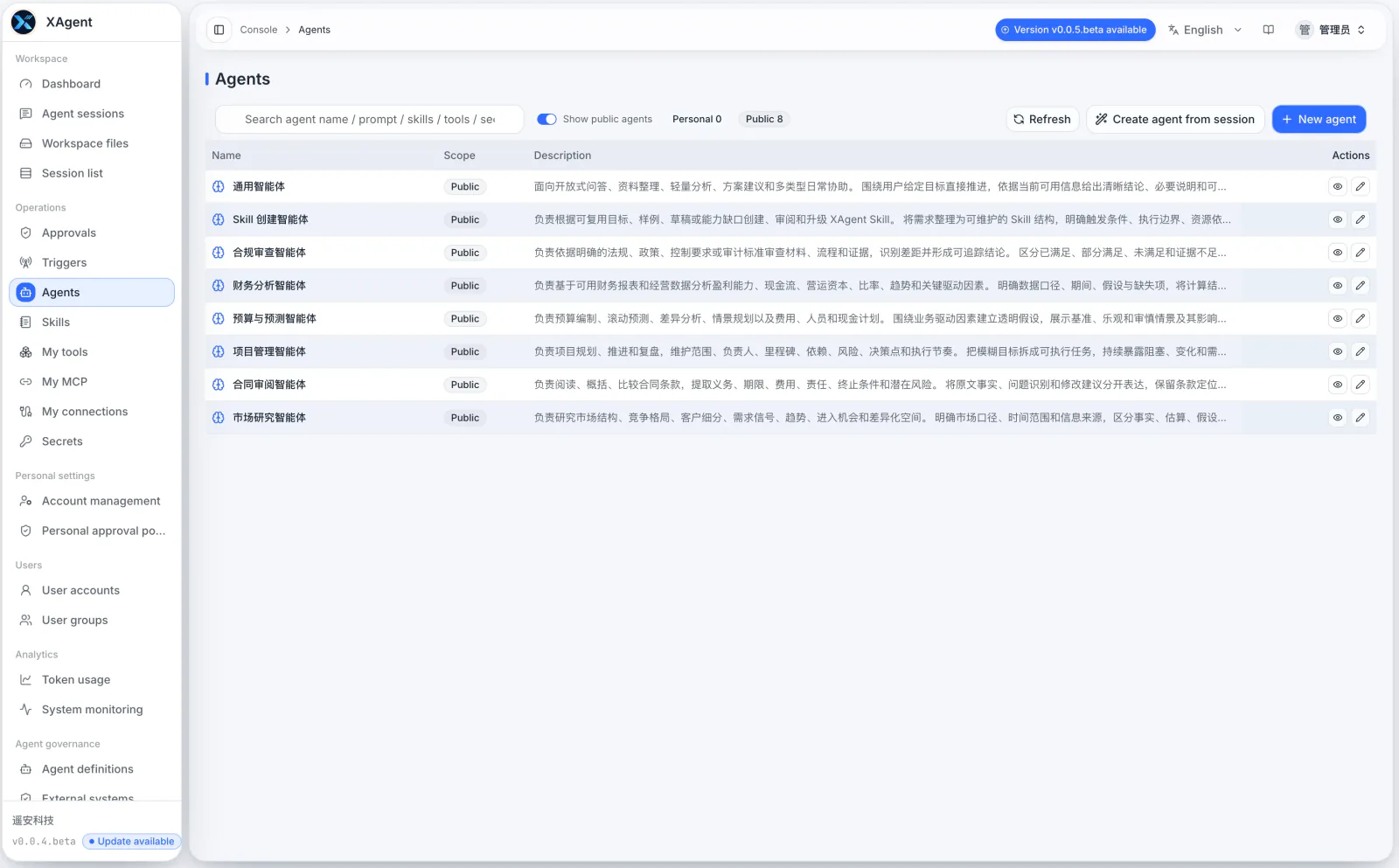
The user-side Agent page is used to select and maintain task entry points available to the current user:
- View built-in, public, and personal Agents.
- Search names, prompts, Skills, Tools, or Secret dependencies.
- Create a personal Agent or inspect a public Agent definition.
See Agent Management for the complete concepts.
Skill Management
Menu path: Operations > Skills (/app/skills)
Visible to: The signed-in user
Skill Management is used to reuse task methods and maintain personal Skills:
- View summaries and status for built-in, public, and personal Skills.
- Search Skills, inspect resource files, and load them on demand in a Session.
- Create, validate, edit, and publish personal Skills.
See Skill Management for the complete workflow.
My Tools
Menu path: Operations > My tools (/app/tools)
Visible to: The signed-in user
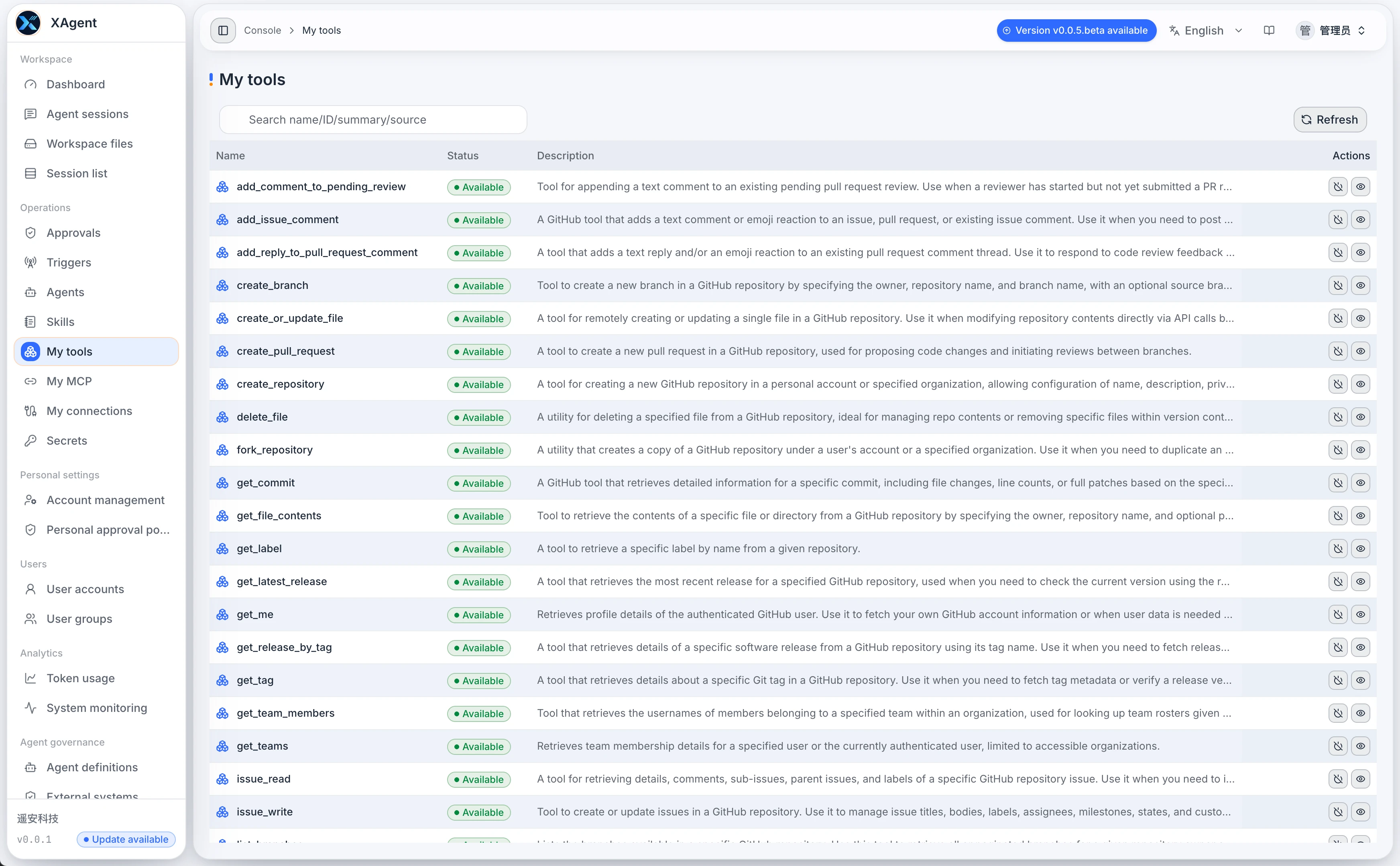
My Tools brings together the native, MCP, and AgentPlugin Tools available to the current account:
- Search or filter by name, source, risk, and readiness.
- View Tool descriptions, parameters, approval requirements, and reasons for unavailability.
- Whether a Tool can be invoked also depends on system status, account scope, and approval policies.
See Tool Management for details.
My MCP
Menu path: Operations > My MCP (/app/mcp)
Visible to: The signed-in user
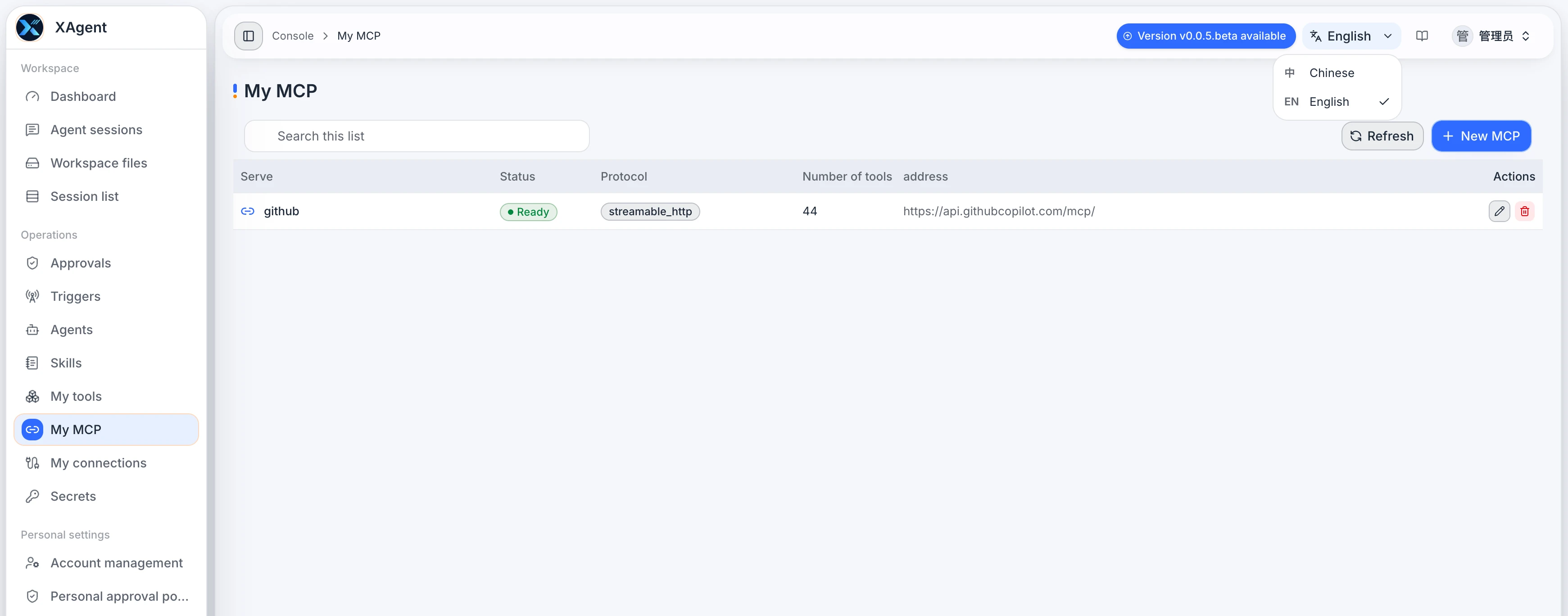
My MCP is used to view and manage MCP services connected for the current account:
- View service status, protocol, Tool count, and source.
- Create or edit user-scoped MCP connections.
- If a service is unhealthy, first check its address, authentication, and the administrator-side global configuration.
Plugin Connections
Menu path: Operations > My plugins (/app/plugin-connections)
Visible to: All users
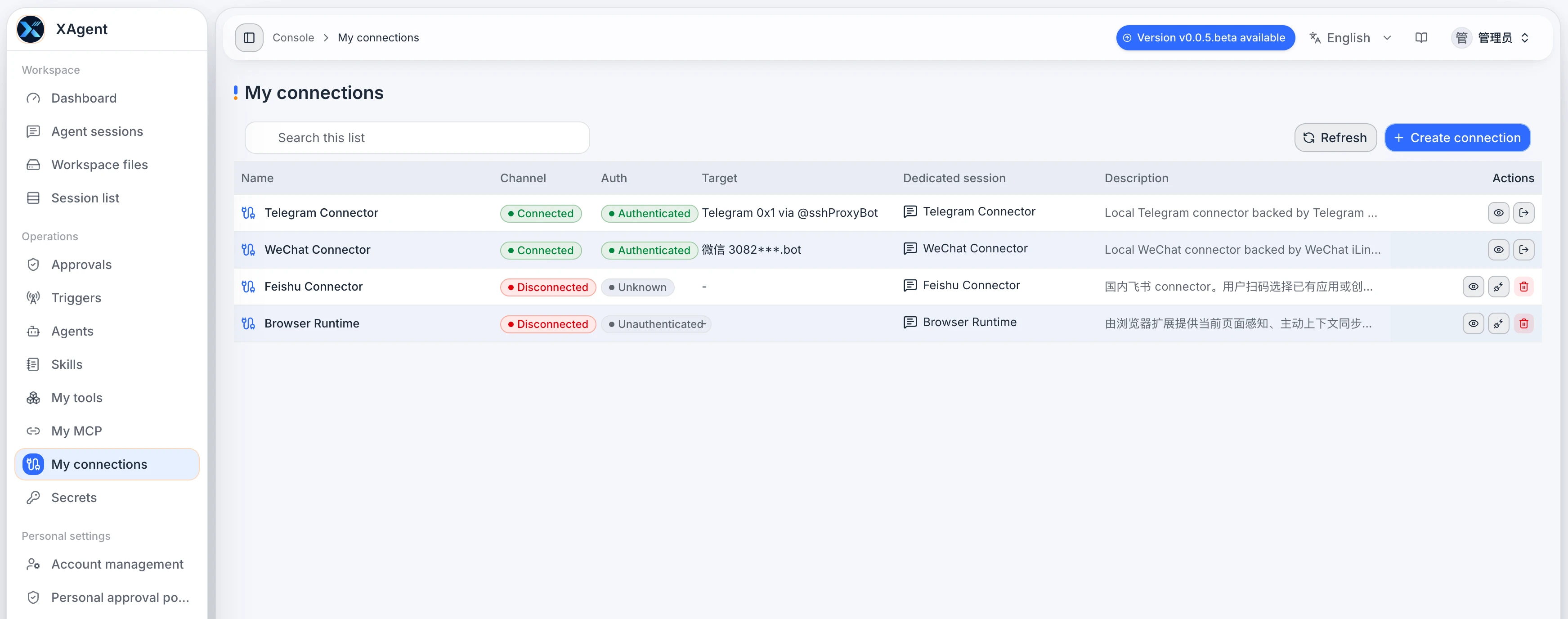
Plugin Connections binds personal external accounts to installed AgentPlugins:
- View channel connection status, authentication status, bound targets, and dedicated Sessions.
- Create a connection and complete QR code, bot, or application authorization.
- Enter the dedicated Session, or reauthenticate and reopen the channel when a connection expires.
See AgentPlugins for the complete workflow.
A2A
Menu path: Operations > A2A (/app/a2a)
Visible to: Users
Users discover and manage remote Agents, send and track tasks, and inspect remote outcomes in an inbox. A2A is managed separately from locally installed AgentPlugins. See A2A Client.
Environment Variables (Formerly Secrets)
Entry note: The image and /app/secrets refer to the older Secrets entry. v0.0.22.beta replaces Secret management with environment variables; follow the actual menu in your installed version.
Visible to: All users
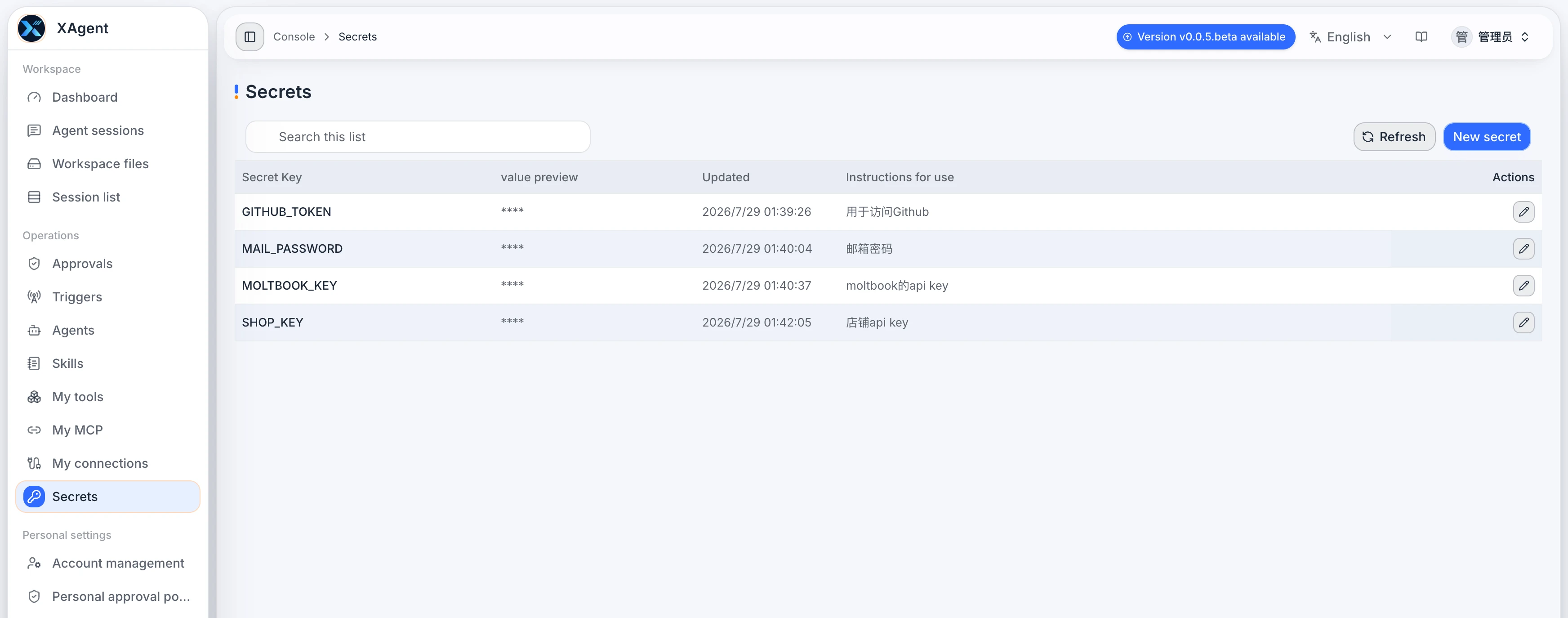
Environment variables hold credentials or ordinary configuration. Choose the appropriate mode before creating one:
| Mode | Purpose and reading boundary |
|---|---|
| Encrypted | Sensitive values such as passwords and access tokens; the model sees placeholders only |
| Unencrypted | Ordinary text configuration readable on demand; not confidential storage |
The encryption mode cannot be changed after creation. Provide a clear name, description, and usage notes. Names containing markers such as KEY or TOKEN require confirmation before saving an unencrypted value; this warning does not determine whether its contents are sensitive. Existing Secrets migrate to encrypted variables during upgrade.
In v0.1.0, encrypted placeholders resolve only at permitted request-execution boundaries. Files, messages, and persisted content retain the placeholder rather than expanding the secret. See the release notes. This boundary does not authorize sending credentials to additional destinations.
Keep credentials out of prompts, Workspace files, and screenshots. These mode and access boundaries follow the v0.0.22.beta release notes; the older image does not show the new fields.