Analytics Pages
Version scope: current-field and behavior corrections below were checked against source
43d2698on 2026-10-01. Older public binaries may differ; verify your installed version before following a changed UI or operation.
xAgent separates personal usage from administrator analytics. Users can review their own model and tool consumption; administrators use the separate admin console for organization-wide usage and service health. These figures are capacity and cost signals, not billing records.
Personal Usage
Menu: Workspace > Usage (/app/dashboard)
Visibility: The signed-in user
- Review your own input, cached, output, and total tokens over a selected time range.
- Review your own model calls, tool calls, and model usage details.
- The personal page does not show other users’ usage. Administrators also receive a personal view when using
/app.
Time ranges include today, this week, this month, this year, and custom dates. Retry or refresh after a loading error; unavailable data does not mean zero usage.
Administrator Token Usage
Menu: Admin console > Analytics > Runtime statistics (/admin/users/token-usage)
The current menu is named Runtime statistics and combines Token Usage with the administrator runtime overview.
Visibility: Administrators
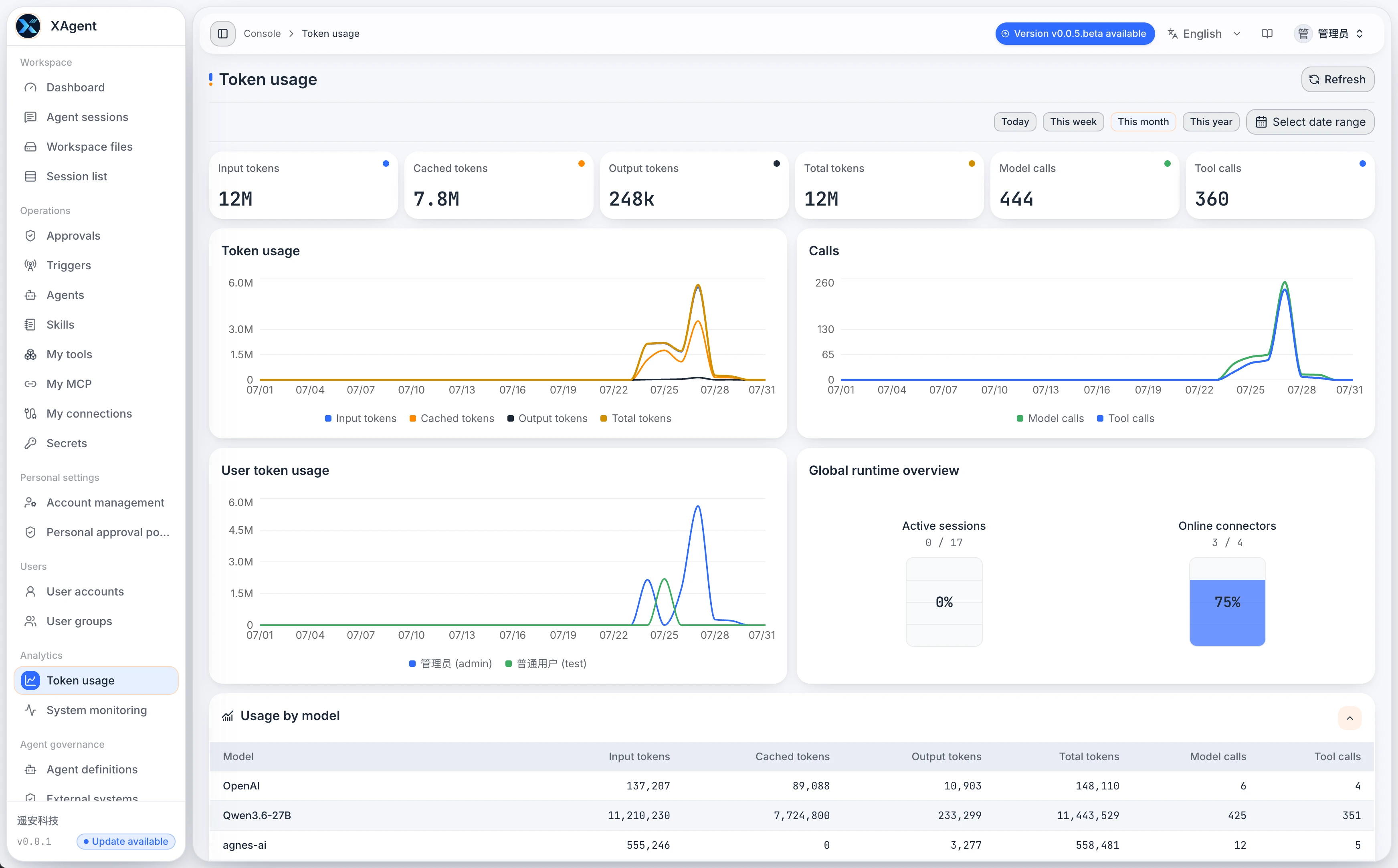
- Review input, cached, output, and total tokens over a selected time range.
- Compare model-call and tool-call trends.
- Use model and user dimensions to locate major consumption sources.
- The runtime overview includes counts and status for users, Sessions, AgentPlugins, Triggers, MCP, and A2A to support investigation alongside usage.
- Treat these figures as capacity and cost signals, not billing records.
System Monitoring
Menu: Admin console > Analytics > System Monitoring (/admin/system-monitoring)
Visibility: Administrators
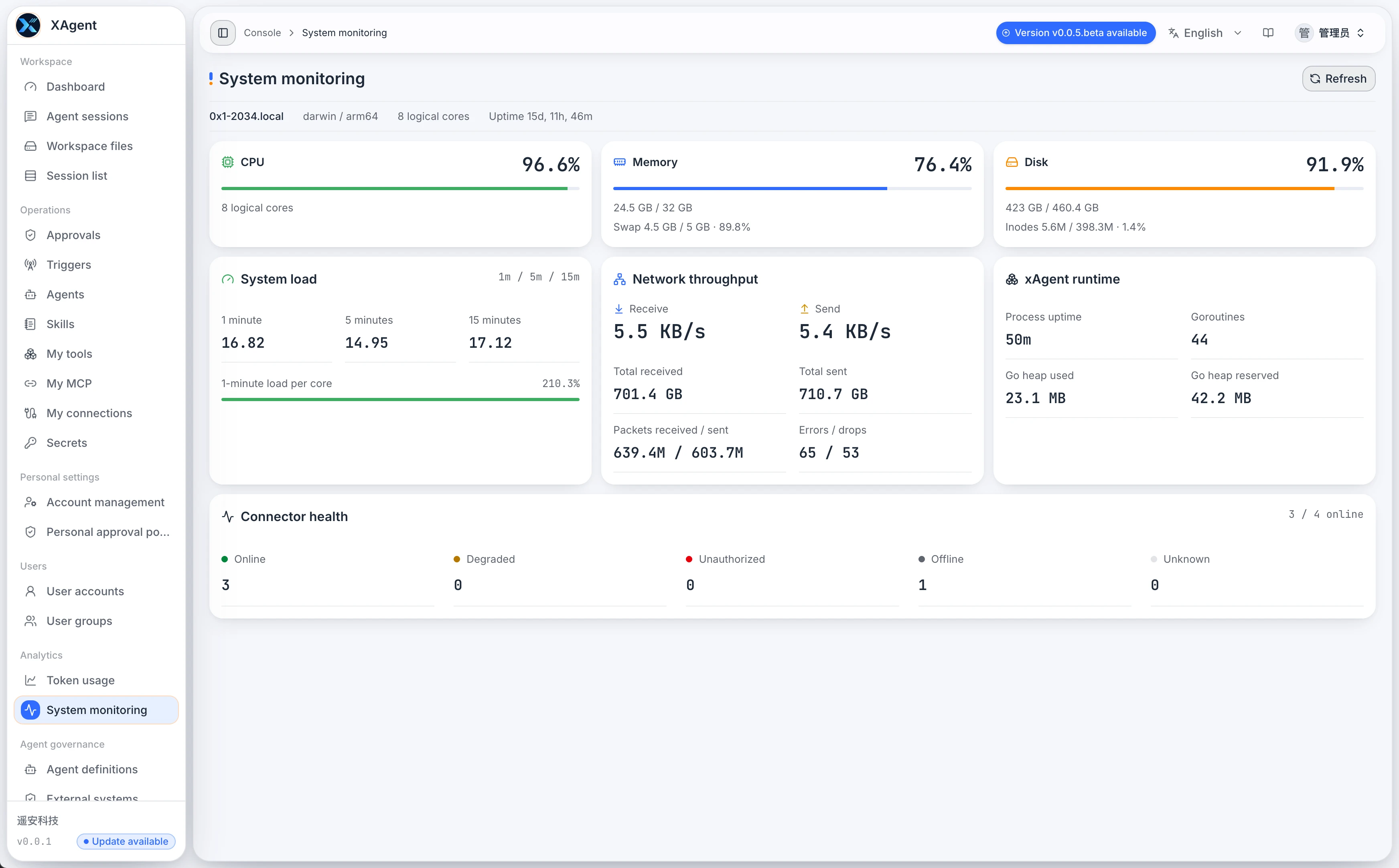
- Review CPU, memory, disk, load, network, and xAgent runtime indicators.
- Check Connector health and service availability together; model and Tool-call trends belong in Runtime statistics.
- Compare the page with service logs to distinguish a brief spike from a persistent failure.
Error Records
Menu: Admin console > Analytics > Error records (/admin/platform-incidents)
Visibility: Administrators
- Check whether collection is enabled, then filter records by source, nature, severity, and search text.
- The list uses server-side queries and pagination. Open details to inspect samples, occurrence times, and related Session or Tool identifiers.
- Preserve investigation evidence before deleting an item or clearing records; clearing records does not fix the underlying cause.
Suggested investigation order: inspect the error and related objects, check resource pressure in System Monitoring, then use Runtime statistics and the originating Session to determine the impact.
Screenshot note: The two
v005images above show the earlier Token Usage and System Monitoring screens and remain useful as metric references. They do not show the current runtime overview or Error Records page and were not newly captured for this review.